Ask the AI for changes
Type what you want in the chat. The AI changes your site for you.
You can change almost anything by chatting. Say what you want in plain words, and the AI does it.
Send a change
Open the chat
The chat is in the side panel, on the Chat tab. If the panel is hidden, click Panel in the left rail.
Panel › Chat
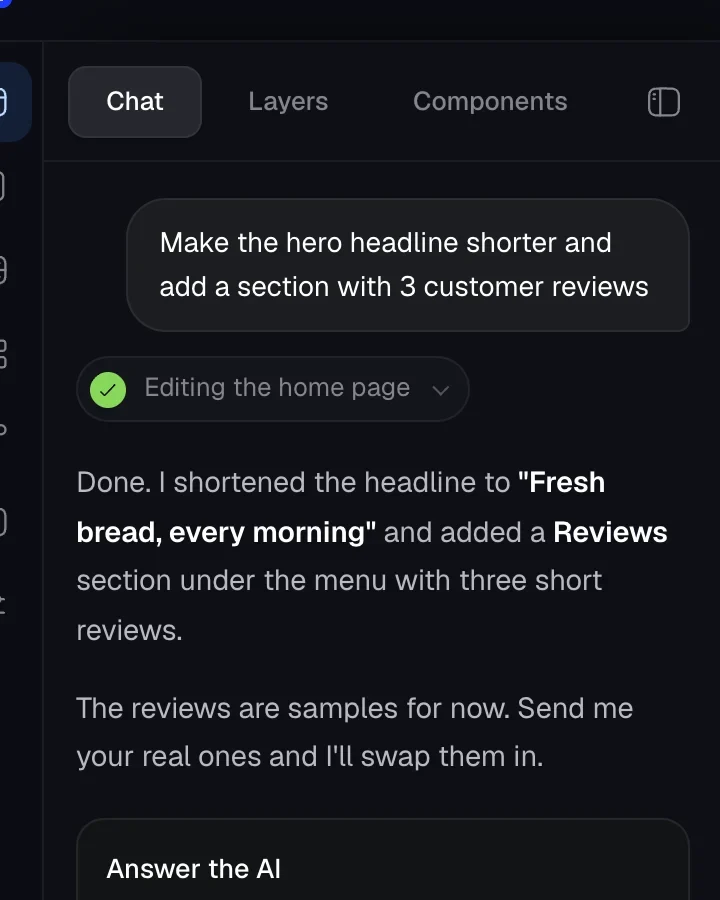
The chat sits next to your page.
Type your request
Write in the box that says Ask for a change… and press Enter.
Watch it work
The AI changes your site. When it's done, check the page and ask for more if needed.
Point at one part of the page
Select a section or some text, then click Ask AI. The AI now knows exactly which part you mean. You can also right-click and pick Ask AI about this.
Good requests
Be clear and specific. One or two changes per message works best.
- "Change the hero headline to: Fresh bread every morning."
- "Add a reviews section under the services."
- "Make the buttons dark green."
- "Add a Pricing page with three plans and link it in the menu."
- "Make the About text shorter and friendlier."
When the AI asks you something
Sometimes the AI needs a choice from you. A card called Bilvo asks appears in the chat. Pick an option and click Answer.
Add photos and files
Click the paperclip next to the chat box. The AI reads what you send, like your logo, photos or a price list.
— Limit
- File types — JPG, PNG, WebP, GIF, PDF, Word (DOCX), TXT, MD, CSV, JSON
- Each file — Up to 20 MB
- Each message — Up to 10 files, 60 MB in total
- Each site — Up to 40 files, 200 MB in total
Location data is removed from photos. On the Free plan, or after you cancel, uploaded files are deleted after 30 days.
What it costs
Chat changes use your plan's Bilvo AI credits, or your own AI plan if you connected one (Claude, ChatGPT and others). Editing by hand never uses credits, and editing a site never counts as a website build. See Plans and limits.
If your credits or AI plan run out
Out of Bilvo AI credits? Top up in Settings → Plan & usage, or wait for the 1st. Using your own AI and see Your AI plan reached its usage limit? Everything is saved. When your plan resets, type continue and send it.
If the AI stops
You'll see The AI stopped unexpectedly. Your site is safe. Type continue and send it. The AI picks up where it left off.
While the AI is working
- You can't edit this site by hand. The page pauses until the AI is done, so your edits don't clash.
- One AI job at a time. Your AI works on one site at a time. You can still open your other sites and edit them by hand.
- Messages wait their turn. Send more requests while it works. They start when the AI is free.
Choose your AI and model
The AI picker under the chat box shows which AI is building. With Claude you can also pick a model: Auto, Opus, Sonnet or Haiku. Auto is a good choice. See Connect your AI.
Still stuck?
A real person replies by email.