Add a cookie banner to your site
Ask visitors before any tracking cookies are used, as the GDPR and UK law require. One switch, on every page.
The cookie banner is for your whole site, not one page. Turn it on once and it shows on every page of your live site.
Turn it on
Open the cookie banner settings
Click Blocks in the left rail, then Cookie banner under Whole site. Or open Site settings → Cookie banner.
Site settings › Cookie banner
Switch it on
Turn on Show a cookie banner. The preview shows how it will look.
Save and publish
Click Save, then publish your site. The banner only shows on your live site, not in the editor.
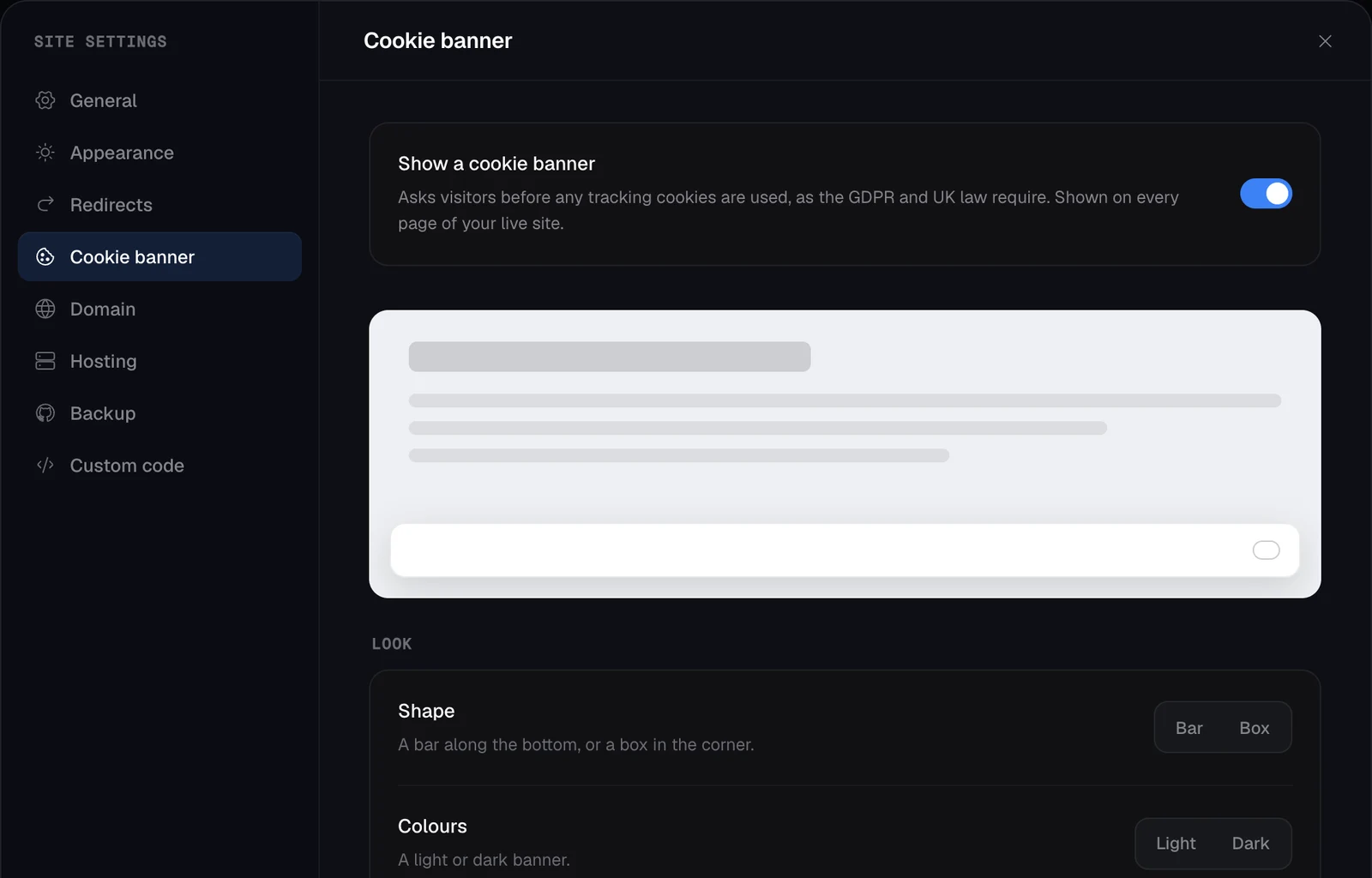
Site settings → Cookie banner.
Make it yours
Setting — What it does
- Shape — A Bar along the bottom, or a Box in the corner
- Colours — A Light or Dark banner
- Button colour — Use your brand colour. Accept and Reject look the same, so saying no is as easy as yes.
- Words — Change the title, message and button words, for example if your site is in another language
- Link to your policy — Pick your privacy page, type Another address…, or choose No link
- Choices — Let visitors allow or block Analytics (like Google Analytics) and Marketing (like the Meta Pixel or Google Ads) separately
- Cookie button in the corner — After choosing, a small round button lets visitors change their mind
No privacy page yet?
Click Ask the AI to write it. The AI writes a privacy and cookie policy page for your business and links it in your footer. Read it through before you publish.
Make tracking code wait for a yes
A banner only helps if your tracking tools wait until the visitor agrees. Bilvo does this for you:
- Code in Custom code (like Google Analytics or the Meta Pixel): in Site settings → Custom code, set each code's Runs to After the visitor allows Analytics cookies or After the visitor allows Marketing cookies. Or click Make it wait on the Cookie banner page to set them all at once.
- Tracking code written inside a page: the banner can't hold it back. Click Ask the AI to move it, and the AI moves it to Custom code so it waits too.
- Google tags are told "no consent yet" until the visitor agrees (Google Consent Mode v2).
Not legal advice
The banner covers the usual GDPR and UK rules for cookies. If you're not sure what your business needs, check with a legal adviser.
Still stuck?
A real person replies by email.