Add, move and redesign sections
Add new sections, try other looks, reorder, hide or delete them.
A section is one band of your page, like the hero, reviews or contact. You can change each one on its own.
Pick a section
- Click once to pick the whole section.
- Click again to go inside it and pick a title, photo or button.
- Hold ⌘/Ctrl and click to pick the exact thing under the mouse.
- Press Esc to go back up one level.
The section bar
When a section is picked, a small bar shows above it.
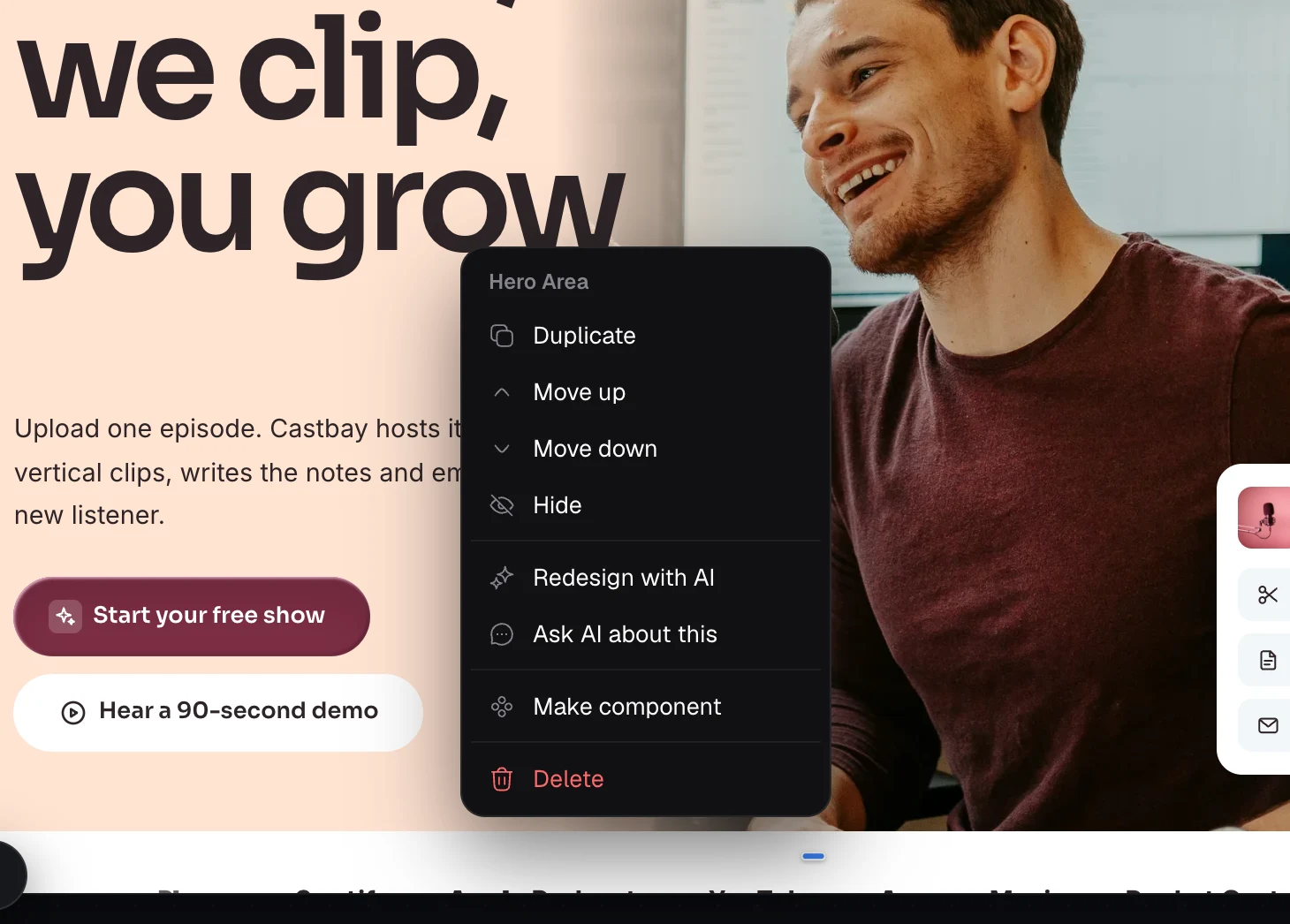
Right-click any section to see the same actions in a list.
Button — What it does
- Move up / Move down — Moves the section up or down the page.
- Duplicate — Makes a copy right below it.
- Hide section / Show section — Hides it from visitors without deleting it.
- Redesign — Asks the AI for a new design of this section.
- Delete section — Removes it. You can bring it back with ⌘/Ctrl Z.
You can also drag items on the page to reorder them.
Add a new section
Click + Add section
It shows between sections when you move your mouse there.
Say what it should show
For example: "Three prices with a monthly and yearly switch".
Add a picture (optional)
Click Add a reference image. Bilvo copies its layout, in your site's own style. Max 25 MB.
Click Create section
The AI builds it and puts it on your page.
Try another look
Right-click a section and pick Try another look. It swaps to another ready-made layout. Your words and photos stay.
- See all looks shows every look you've tried, so you can go back to one.
- Design a new look with AI makes a brand new one. You get 3 per section.
Redesign with the AI
Click Redesign in the section bar. Tap an idea like More photos, less text or Simpler and calmer, or type your own. You can add a photo for reference. Then click Send.
Right-click for more
Right-click anything to see all its actions: edit, duplicate, move, hide, Try another look, Redesign with AI, Ask AI about this, Make component and Delete.
FAQs, tabs and prices
Some parts hide content until a visitor clicks, like FAQ answers, tabs or yearly prices. Bilvo shows a Hidden content card for these. Pick Open all to edit to see and change every part.
Still stuck?
A real person replies by email.