Site settings: name, icon, redirects and custom code
Set your site name, browser icon and share picture, add redirects and paste code like Google Analytics.
Click Settings in the left rail to open Site settings. The tabs are along the side.
General
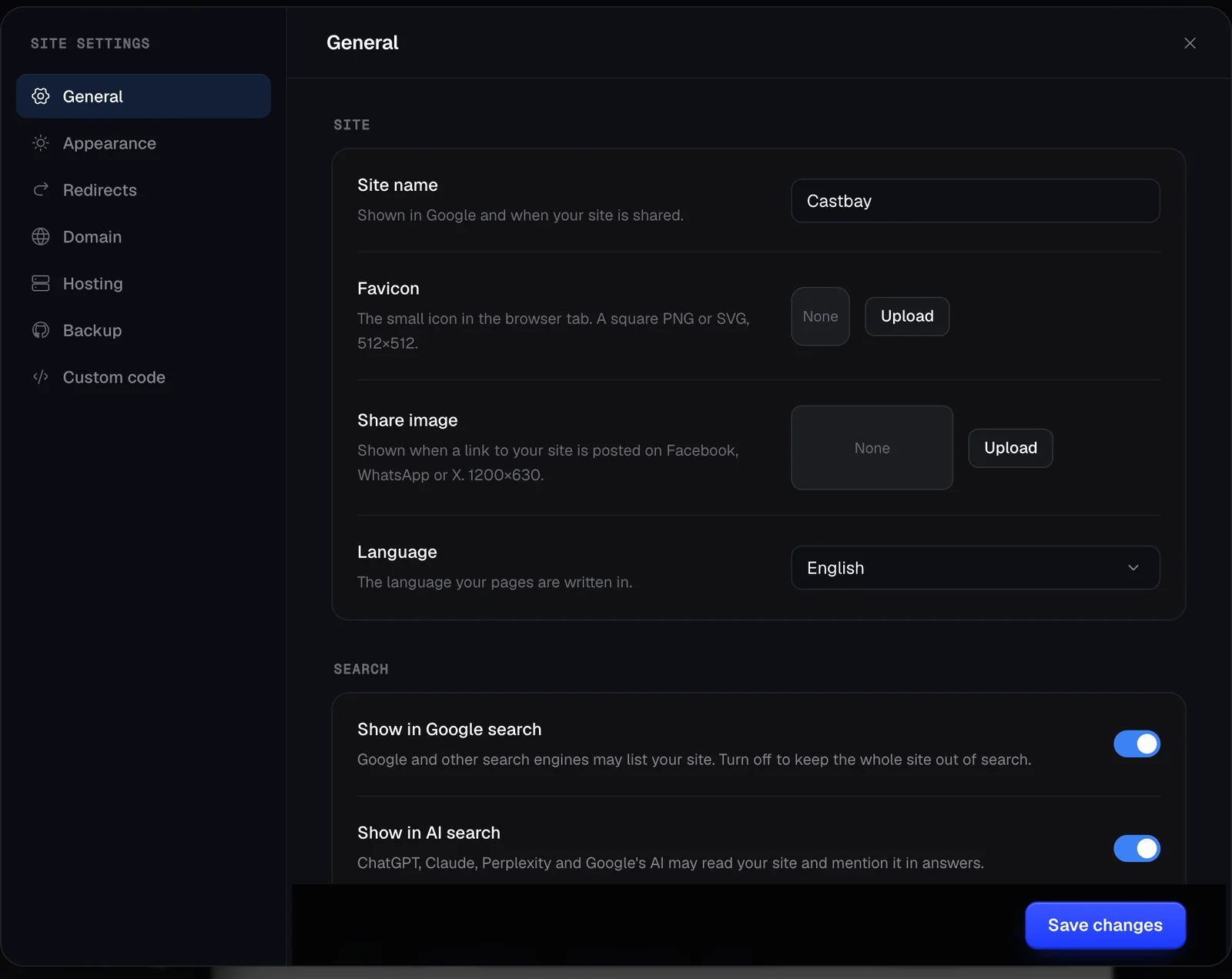
- Site name: Shown in Google and when your site is shared.
- Favicon: The small icon in the browser tab. A square PNG or SVG, 512×512.
- Share image: The picture shown when someone shares your site. 1200×630 works best.
- Language: The language your site is written in.
- Show in Google search: Lets Google list your site.
- Show in AI search: Lets ChatGPT, Claude, Perplexity and Google's AI read your site.
Below is a list of your pages. Set each page's title, description and share image, and whether it shows in search. Click Save changes.
Redirects
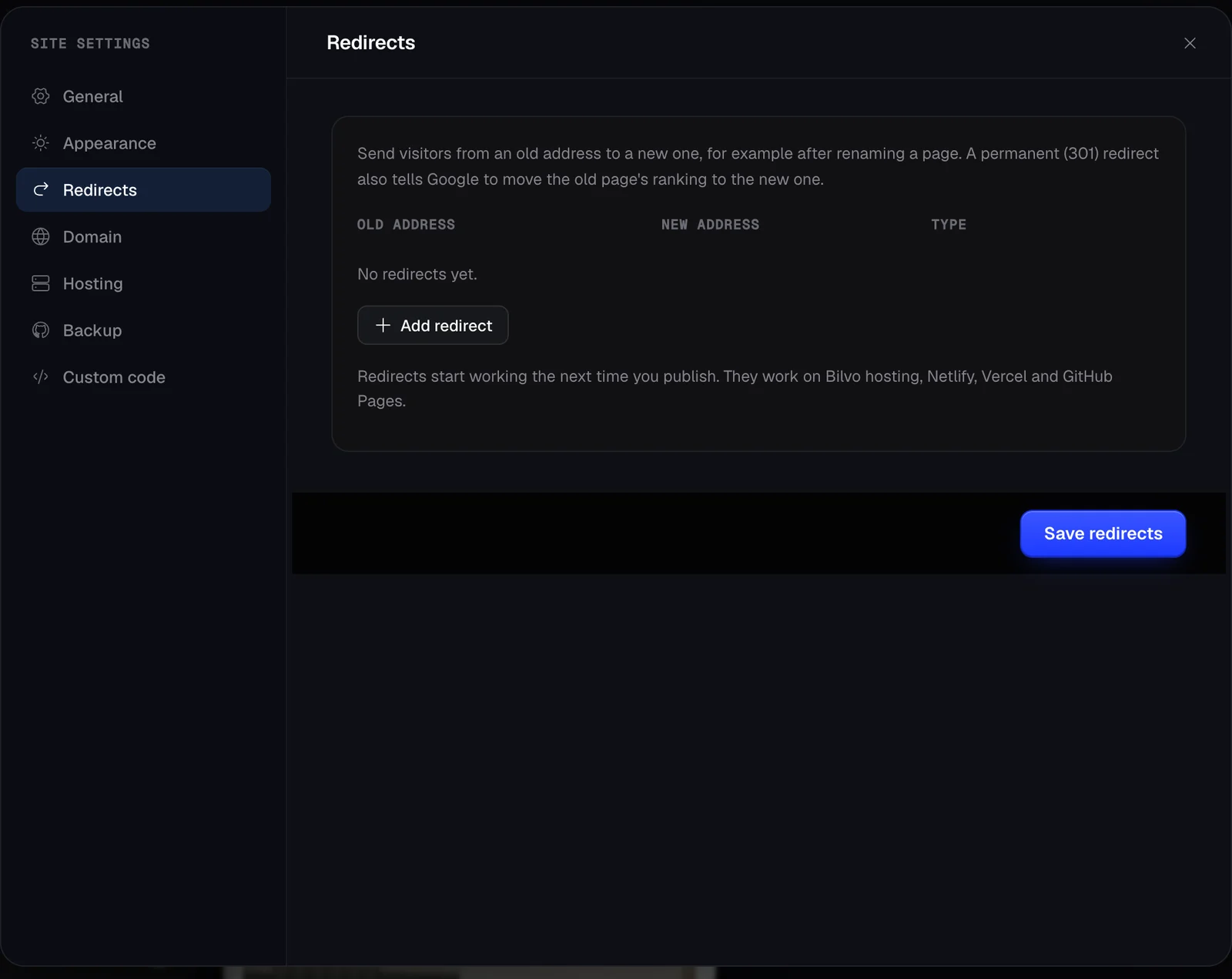
A redirect sends visitors from an old address to a new one. Useful when you move from an old website.
Open Redirects
Open the Redirects tab and click Add redirect.
Site settings › Redirects › Add redirect
Fill in both addresses
Type the Old address (like /about-us) and the New address (like /about).
Permanent or temporary
Leave Temporary off for a permanent move. That's best for Google. Turn it on only if the change is short-term.
Save and publish
Click Save redirects. They start working the next time you publish.
Redirects work on Bilvo hosting, Netlify, Vercel and GitHub Pages.
Cookie banner
Ask visitors before tracking cookies are used. See Add a cookie banner.
Custom code
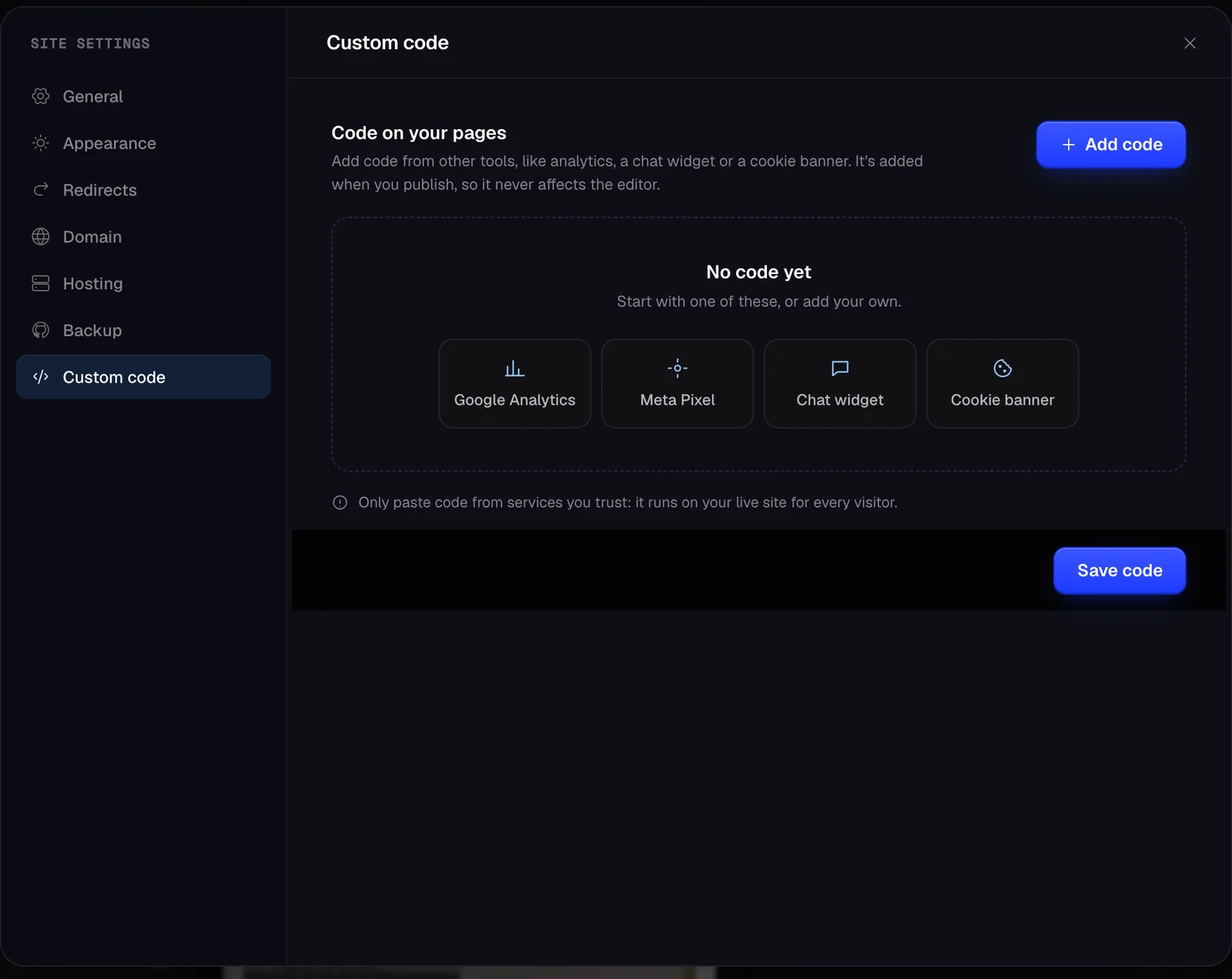
Add code from other services, like visitor stats or a chat bubble.
Open Custom code
Open the Custom code tab. Click a quick add: Google Analytics, Meta Pixel, Chat widget or Cookie banner. Or paste your own code.
Site settings › Custom code
Choose where it goes
Pick Start of page or End of page. The service's instructions usually say which.
Choose the pages
Under Pages for this code, pick all pages or only some.
Save and publish
Click Save code. It's added when you publish, so it never affects the editor.
Domain, Hosting and Backup
- Domain: use your own address. See Connect your own domain.
- Hosting: choose where your site is published. See Publish your site.
- Backup: keep a copy on GitHub. See GitHub backup.
Light or dark builder
The Appearance tab sets how the builder looks for you: Light, Dark or System. It doesn't change your website.
Still stuck?
A real person replies by email.