Blog posts, team, products and other lists (CMS)
Keep repeating content like blog posts or team members in one place. Add one item and your site updates.
The CMS keeps lists of things in one place: blog posts, team members, products and more. Each list is called a collection. Each entry is an item.
The CMS is on every plan. Free includes up to 1,000 items per site; paid plans are unlimited.
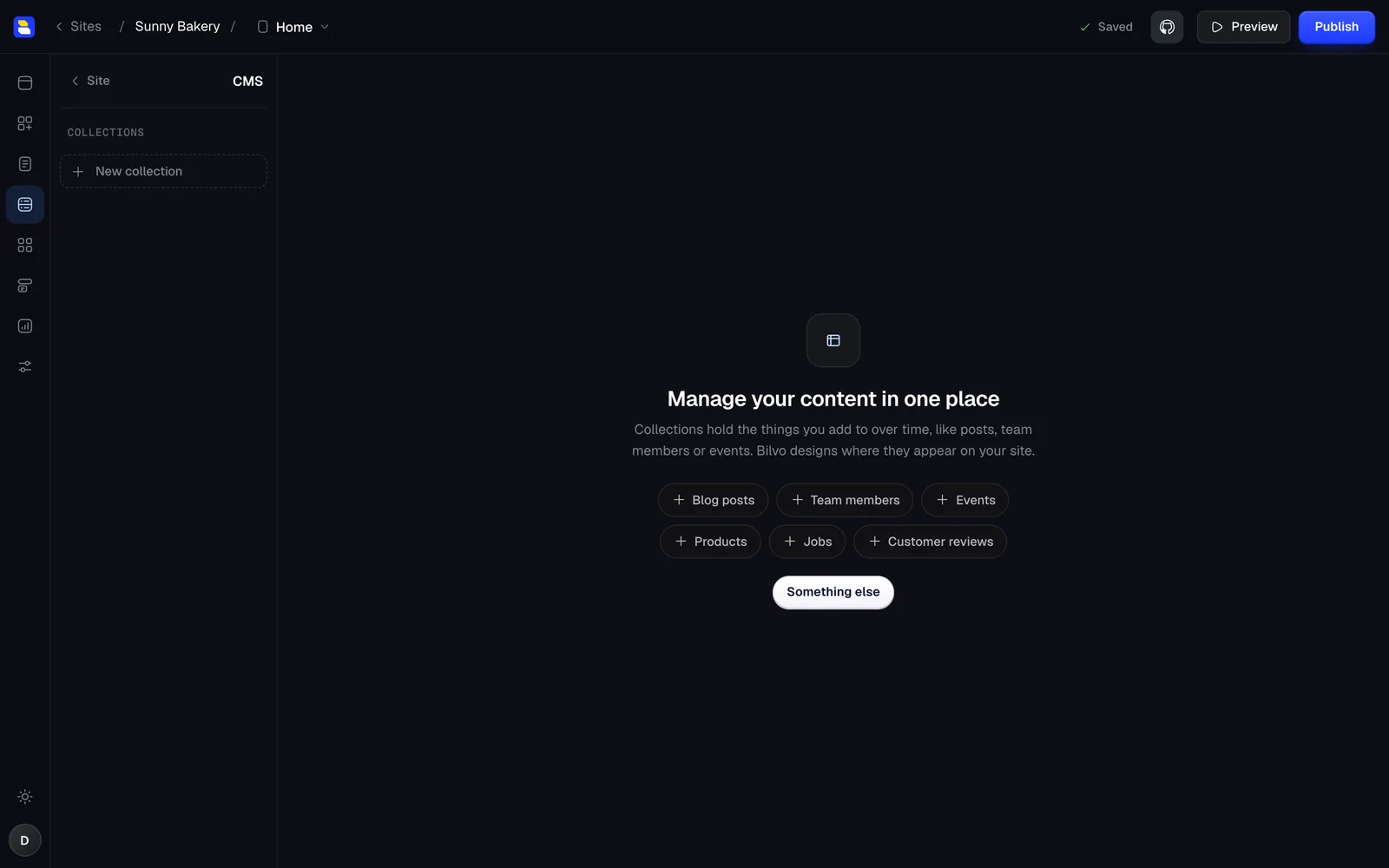
Make a collection
Open the CMS
Click CMS in the left rail, then New collection.
CMS › New collection
Pick a start point
Choose Blog posts, Team members, Events, Products, Jobs, Customer reviews, FAQ or Something else.
Choose how to start
Create with AI adds it to your site with 3 real items. Create manually gives you an empty list to fill.
A page for each item?
Pick Yes if every item needs its own page, like a blog post. Pick No for simple lists, like an FAQ.
Add and edit items
Add an item
Open a collection and click New item. Fill it in and click Create item.
Write the text
The text editor has bold, italic, links, lists, photos, YouTube videos, quotes and a full-screen mode.
Draft or published
Turn Published off to keep an item as a draft. Drag items to change their order.
Fields
Fields are the boxes each item has, like title, photo or date. Open Collection settings → Fields to change them. Click Add field, then Save fields.
Types: Text, Rich text, Image, Date, Link, Number, On/off, Select and Color.
New field not showing?
Ask the AI to show it. For example: "Show the author on each post."
Add many items from a spreadsheet
Click Add items from a spreadsheet. Use a CSV file or a WordPress export, up to 24 MB. Not sure of the layout? Click Download the spreadsheet for a ready template.
Show a list on your page
Pick a spot
Right-click on the page and choose Add CMS list here. Or right-click existing cards and choose Make this a CMS list.
Set it up
In the CMS list card on the right, choose the collection, the order, a filter and how many items to show.
Design one, all follow
Edit inside one item. Every item in the list follows the same design.
Still stuck?
A real person replies by email.