Translate your site into other languages
Add languages to your site, translate them with AI or by hand, and let visitors switch.
Show your site in more than one language. Your main language stays as it is. Each new language gets its own copy of your words, and the design stays the same in every language.
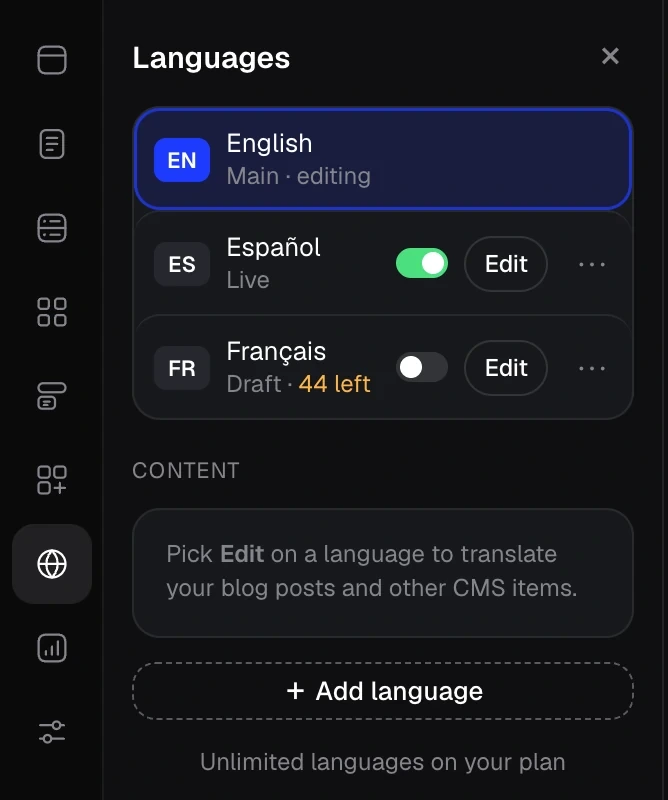
Add a language
Open Languages
Click Language (the globe) in the left rail.
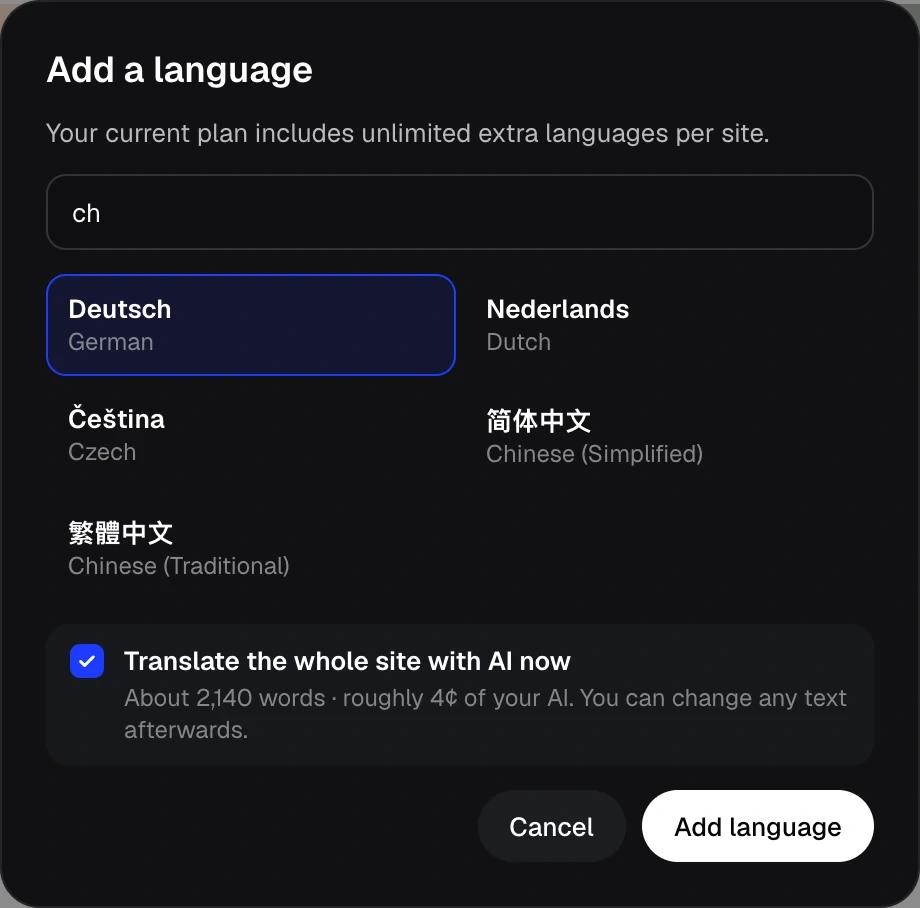
Click Add language
Search for the language you want and click it. You can pick from more than 75 languages.
Translate with AI, or not
Translate the whole site with AI now is ticked. It shows how many words your site has and roughly what it costs from your AI. Untick it if you want to type every word yourself.
Click Add language
The language is added as a draft. The first time, Bilvo also puts a language switcher in your header.
How many languages?
Paid plans include unlimited languages. The Free plan has 1 language per site (your main one), so adding another shows an Upgrade link instead.
Translate with AI
The AI translates your pages, blog posts and cookie banner in the background. The page fills in as it works, and the Languages panel shows how far it has got.
Added more pages later? Click ⋯ next to the language, then Translate what's missing with AI. It only does the texts that are still in your main language.
If your AI runs out partway, nothing is lost. What's done is kept, and you can finish later or type the rest yourself.
Check and change the words
Click Edit next to a language. The page now shows that language. Click any text and type to change it. See Translate your site by hand for the details.
Click ⋯, then All texts on this page, to see every text side by side. You can also set the page title and description that Google shows in that language there.
Make it live
Turn on the switch
Turn on the switch next to the language. Its status changes from Draft to Live.
Publish
Click Publish. Visitors see the language after you publish. Until then it's a draft only you can see.
To hide a language again, turn the switch off and publish.
The language switcher
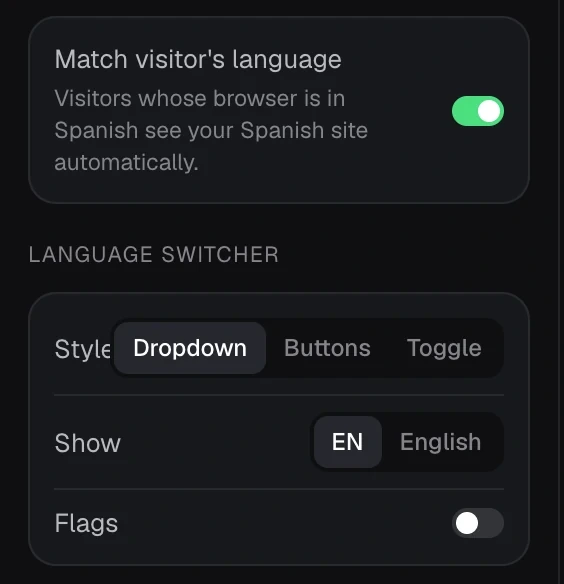
Visitors use the switcher in your header to change language. Under Language switcher in the panel, choose how it looks:
- Style: Dropdown, Buttons or Toggle
- Show: a short code like EN, or the full name like English
- Flags: show a small flag next to each language
On phones and tablets, buttons and toggles show as a small dropdown so they always fit. To change the switcher's colours or size, switch to your main language and click it in your header.
Removed the switcher by mistake? Click Put the language switcher back in the header in the panel.
Show visitors their own language
Match visitor's language is on by default. A visitor whose browser is set to one of your languages sees that language straight away. If they pick a language in the switcher, your site remembers it next time. Turn it off and everyone starts in your main language. Publish to apply the change.
Remove a language
Click ⋯ next to the language, then Remove. Its translations are kept, so adding it back later brings them back.
Design changes
Layout, colours and photos are shared by every language. Make those changes in your main language and they show everywhere.
Still stuck?
A real person replies by email.