Add a ticker: a moving strip of logos, pictures or words
A band that scrolls by itself. Show client logos, photos, reviews or short phrases.
4 min read
Add a ticker
Open Blocks
In Edit mode, click Blocks in the left rail.
Blocks › Tickers
Pick a ticker
Under Tickers, choose one: Logo ticker, Picture ticker, Card ticker, Word ticker or Curved ticker.
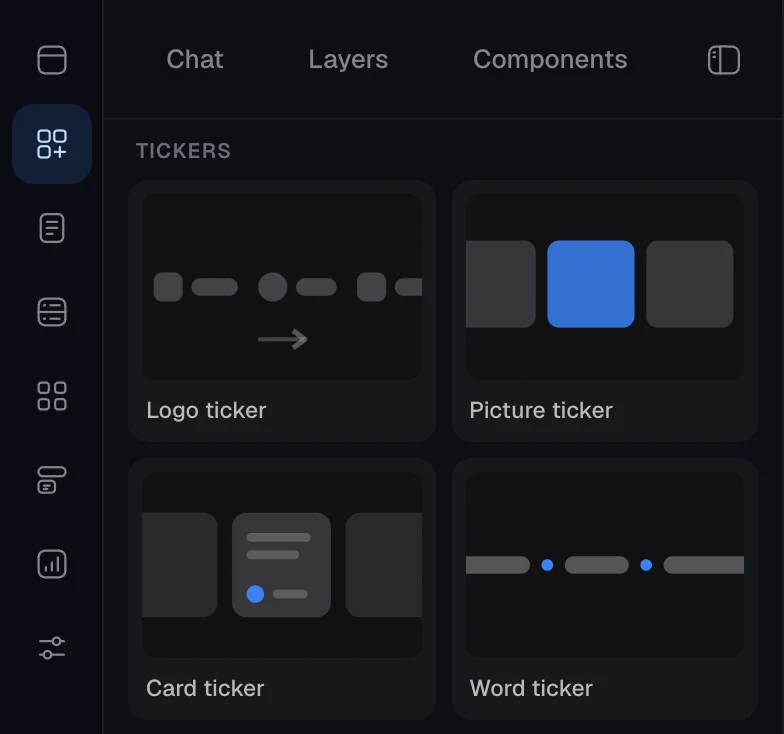
Five kinds of ticker.
Put it on the page
Drag it onto your page, or click it and then click where it should go. It's picked for you, and its settings open on the right.

A logo ticker with its settings on the right.
Change what's in it
- Add something: click Add item and pick Image, Text or Icon. Cards or anything else on the page can be dragged onto the ticker.
- Change an item: click it in the list (or on the page). Use Replace image for a picture or logo, Change icon for an icon, or double-click words to type.
- Move, duplicate or remove an item with the buttons next to it in the list.
Change how it moves
Setting — What it does
- Direction — Moves left, right, up or down
- Speed and Gap — How fast it moves and the space between items
- Logo size / Picture size — How big the logos or pictures are
- Between — A small mark between words (Word ticker), or Nothing
- Pause on hover — Stops while a visitor points at it
- Fade edges and Fade size — Softly fades the strip in and out at both ends
- Grey logos — Shows logos in grey, so they look calm and even
See it move
The editor keeps the ticker still so you can click its items. Click Play here to see it move in the editor, or open Preview. On your live site it always moves.
Still stuck?
A real person replies by email.