Link CMS items together
Give a post a category or tags from another list, and show the linked item's name or colour on the page.
Some lists belong together. A blog post has a category. A team member works in a department. A product has a brand. Instead of typing the category into every post, keep categories in their own collection and link each post to one.
Change a category's name or colour once, and every post that links to it updates.
- Reference: links to one item from another collection, like a post's Category.
- Multi-reference: links to several items, like a post's Tags.
Add a reference field
Make the other list first
For example, a Categories collection with a name and a colour. See Blog posts, team, products and other lists.
CMS › New collection
Open the fields
Open the collection that needs the link, like Blog posts, and click Fields.
CMS › Blog posts › Fields
Pick the type
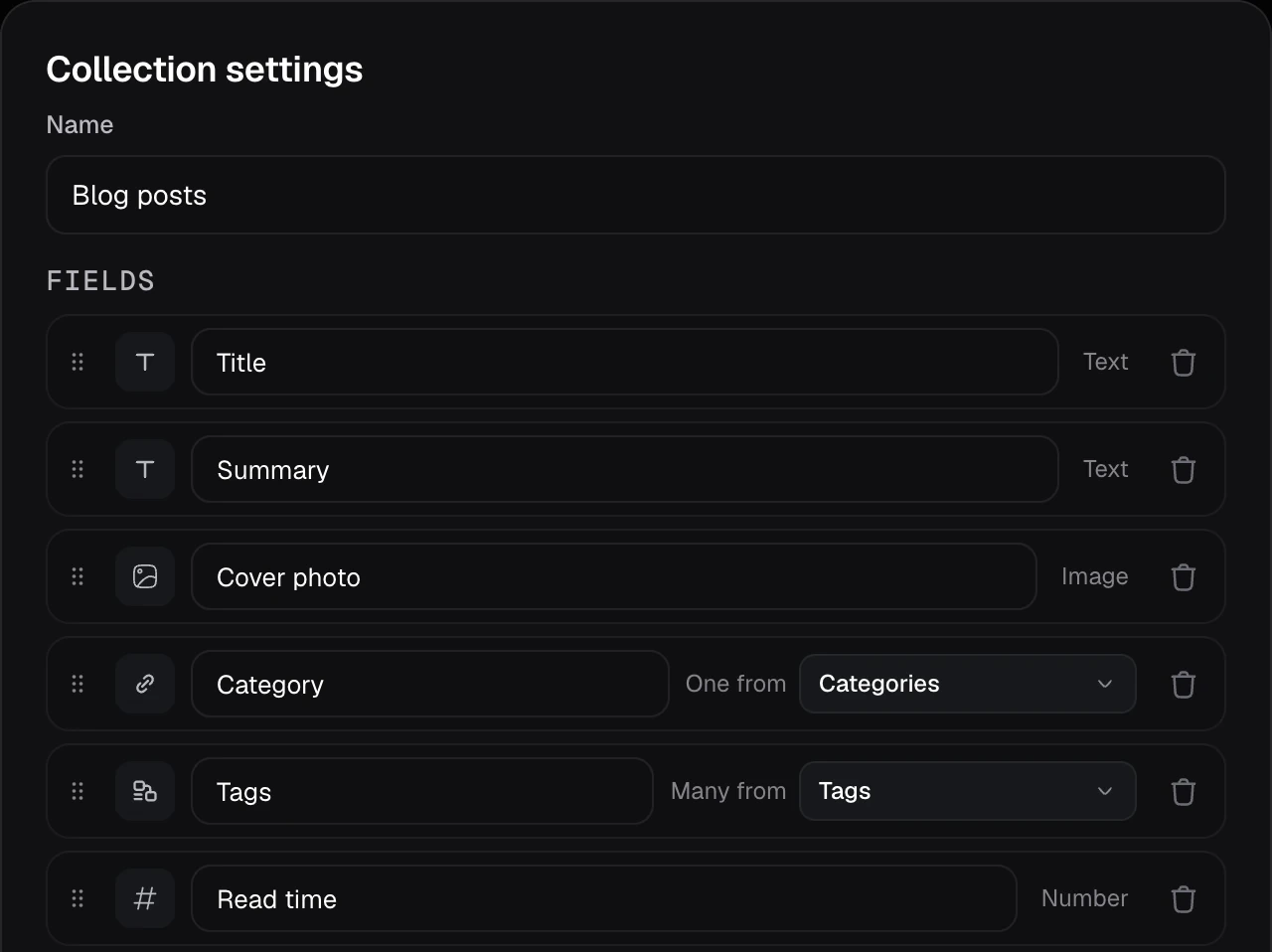
In the list next to Add field, choose Reference or Multi-reference, then click Add field.
Choose the collection
Next to the new field, pick which collection it links to. The row says One from or Many from. Click Save fields.
Pick the linked items
Open an item
Click a post in the CMS.
Choose from the list
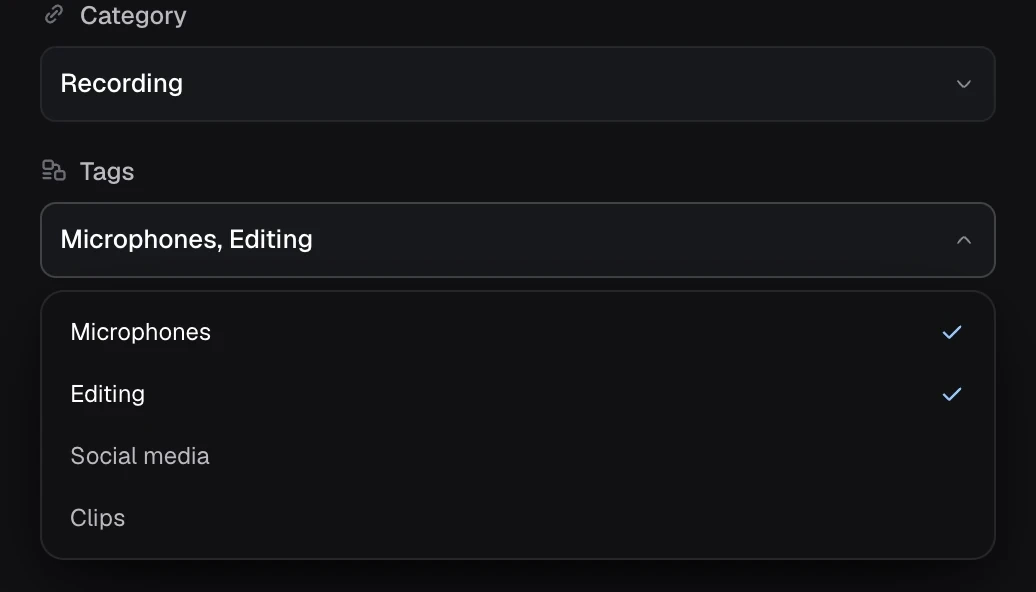
A Reference field is a dropdown with one choice, or None. A Multi-reference field lets you tick as many as you like.
Save
Click Save.
The list is empty?
Add items to the other collection first. For example, add a few categories, then come back to the post.
Show a linked item on your page
Click a part of a card
In a CMS list, or on an item's own page, click a text inside an item.
Choose the field
In the CMS card on the right, open Text. Pick Category (name) to show the category's name. Or pick any of its fields, like Category › Colour. A multi-reference shows all names, like Tags (names).
Use its colour
Pick Category › Colour under Text colour or Fill colour. Each card then shows its own category's colour, like a coloured label.
If the linked collection has its own item pages, a link can open them too. Under Links to, pick Category's page.
When a linked item is deleted or renamed
Before you delete an item, Bilvo tells you how many items link to it.

- Deleted: the item comes off your site, and the posts that linked to it simply lose that link. Nothing else changes.
- Address changed: links follow the item's new address by themselves.
Only some items on a page?
Show only the posts in one category with a filter. See Filter and sort a CMS list.
Still stuck?
A real person replies by email.