A quick tour of the editor
What every part of the editor does, in one page.
The editor has four parts: the top bar, the left rail, the side panel and the properties panel. Your page sits in the middle.
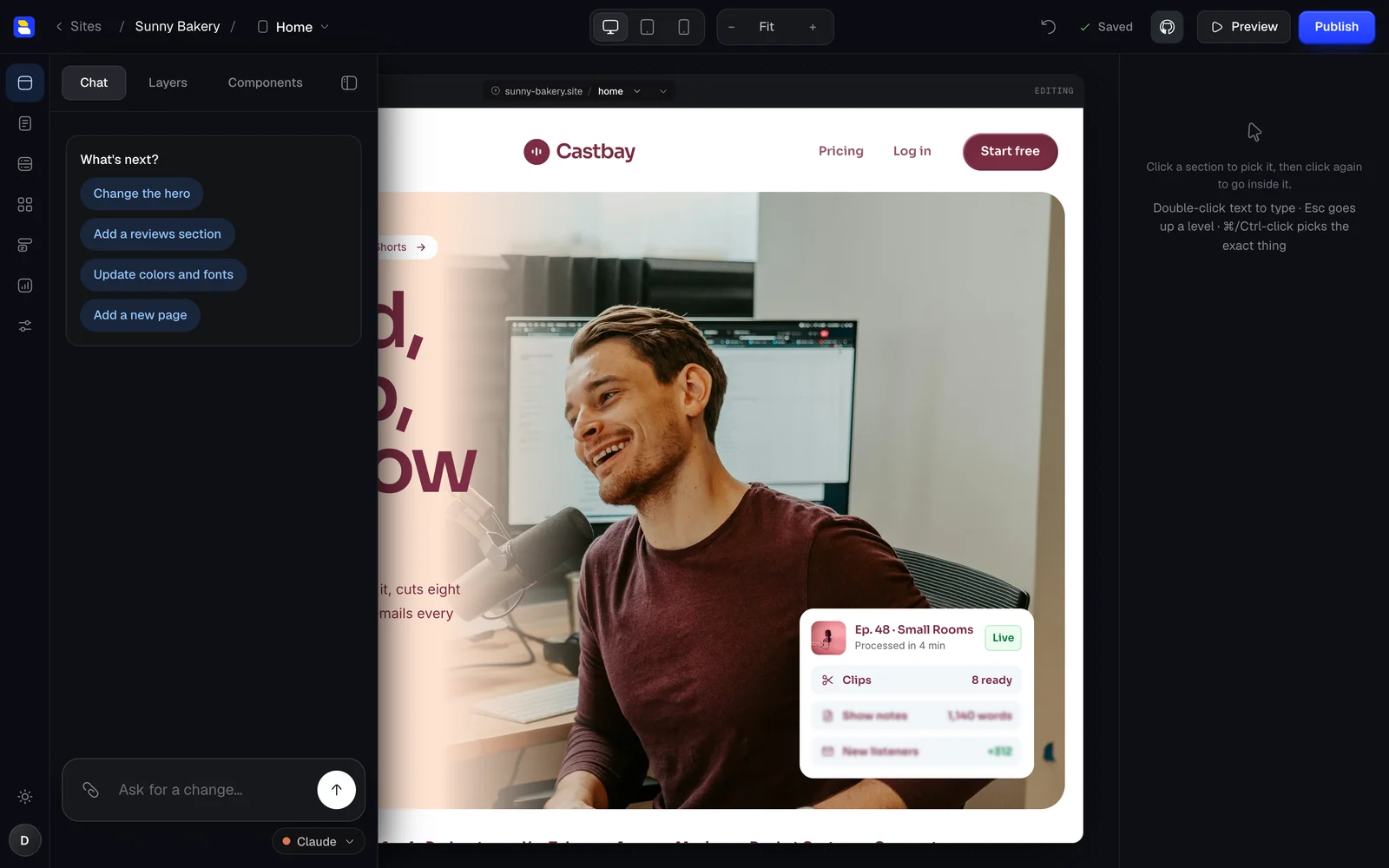
The whole editor at a glance.
The top bar
Button — What it does
- Preview / Edit — Switch between seeing your site like a visitor and editing it.
- Desktop / Tablet / Phone — See and edit your site at that screen size.
- − 100% + — Zoom in and out. Fit fits the page to your screen.
- Undo — Takes back your last change.
- Publish / Update site — Puts your site online, or sends your latest changes live.
Your work saves by itself. The top bar shows Saving… and then All changes saved.
The left rail
Button — What it opens
- Home — Back to your page.
- Pages — Your site's pages. See Pages.
- CMS — Your blog and lists. See Blog and lists.
- Styles — Colours and fonts. See Colours and fonts.
- Menu — Your site's menus. See Menus.
- SEO — How your pages show in Google. See SEO.
- Settings — Site settings. See Site settings.
- Light/dark switch — Changes the editor's own look. Your site stays the same.
- Panel — Shows or hides the side panel.
The side panel
It has three tabs. Chat is where you ask the AI for changes (Ask the AI). Layers shows every part of the page. Components holds sections you reuse (Components and layers).
The properties panel
Click anything on your page. Its settings open on the right: size, spacing, text, colours, effects and more.
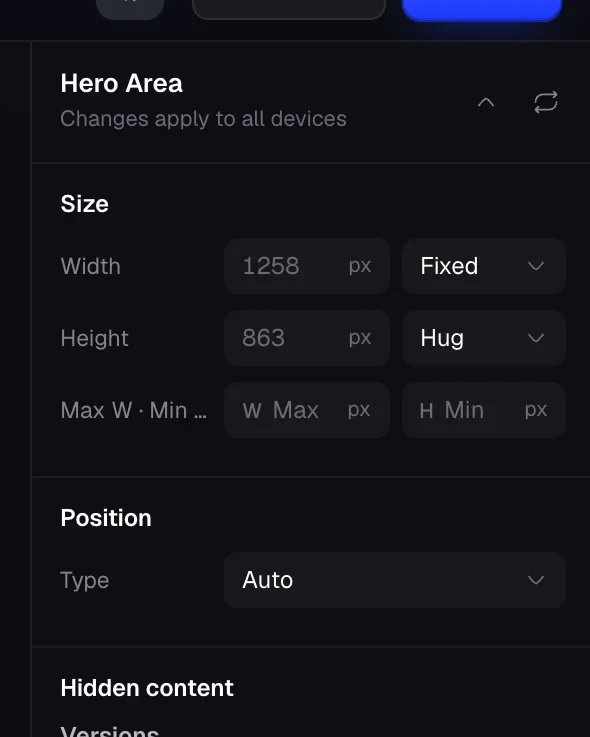
The properties panel for a selected item.
Preview
Click Preview to see your real site, with effects and working links. Press Esc to go back to the builder.
Keyboard shortcuts
Keys — What it does
- ⌘/Ctrl Z — Undo
- Delete or Backspace — Delete the selected item
- ⌘/Ctrl D — Duplicate the selected item
- ⌘/Ctrl + click — Pick the exact thing under the mouse
- Esc — Go up one level, or leave Preview
- ⌘ + / ⌘ − / ⌘ 0 — Zoom in, zoom out, back to 100%
One tab at a time
If the same site is open in two tabs, you'll see This site is open in another tab. Click Edit here instead to keep editing in this one.
Still stuck?
A real person replies by email.