Filter and sort a CMS list
Show only some items in a list, like featured posts or one category, in the order and number you want.
A CMS list shows every item by default. You can change which items show, in what order, and how many. For example: the 3 newest posts, only featured products, or events that haven't happened yet.
Open the list settings
Pick the list
Click the list on your page. Or click it in Layers, where it's called CMS list.
Find the CMS list card
It's at the top of the properties panel on the right.
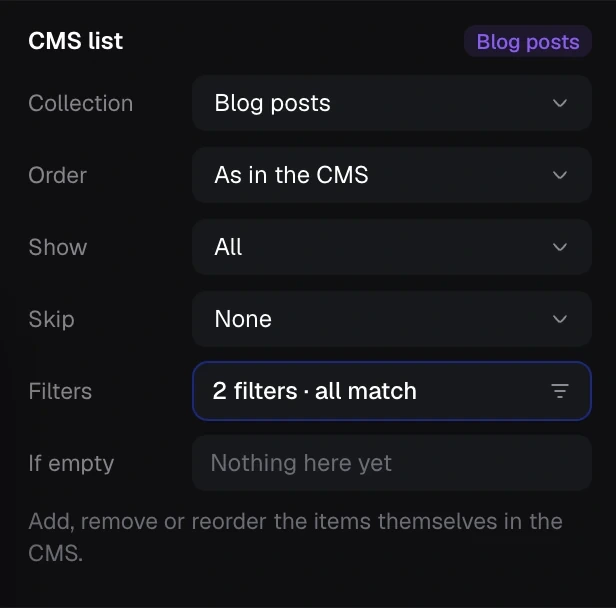
- Order: As in the CMS, or by a field, like Date: newest first.
- Show: All, or a number up to 24.
- Skip: leave out the first few. Handy for a second list under a big featured post.
- If empty: the words visitors see when no item matches, like No events yet.
Add filters
Open Filters
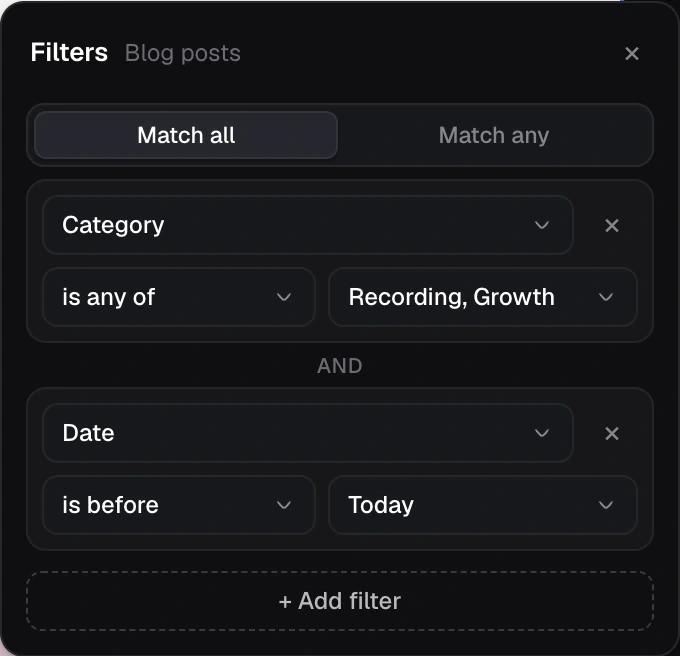
Click the Filters row. It says Show all items until you add one. The Filters box opens next to the panel.
Add a filter
Click + Add filter. Pick a field, then a rule, then a value. The list on the page updates right away.
Add more
Click + Add filter again. With two or more, choose Match all (every filter must fit) or Match any (one is enough).
Remove one
Click the × next to it.
The rules, in plain words
- Text: is, is not, contains, is filled, is empty
- Number: is, is more than, is less than
- Date: is after, is before. Pick Today so it stays right every day, or A date… for a fixed one.
- Choice and Reference: is, is not, is any of
- Multi-reference: includes, doesn't include, includes any of
- On/off: a switch, is on or is off
- Image: is filled, is empty
Is any of lets you tick several values. For example, posts in Recording or Growth.
Ideas
- Upcoming events: Date is after Today.
- Featured posts on the home page: Featured is on, Show 3.
- Products under $50: Price is less than 50.
- Posts with a photo: Cover photo is filled.
Lists on an item's own page
On an item's page, like a blog post, a list can follow that page:
- Same as this page: in a filter, show posts with the same category as the post you're on. Great for "Related posts".
- This page's item: on a category's own page, show the posts in that category.
- This item: choose Leave it out so the post you're reading doesn't show in its own "More posts" list.
Learn about item pages in Give every CMS item its own page.
An item is missing?
Check that it's Published in the CMS and that it fits every filter. Drafts never show on your site.
Still stuck?
A real person replies by email.