Add effects and motion
Make things fade in, follow the scroll, lift on hover or float gently, all from the Motion panel.
Make things fade in, follow the scroll, lift on hover or float gently. All motion lives in one floating Motion panel.
Pick an item
Click a section, photo, card, button or title on the page.
Open the Motion panel
In the right panel, find Motion and click +. The panel floats beside it. Drag it by its top bar to move it. It stays open while you click other items.
Add a motion
Click Add motion and pick when it plays. Then choose an Effect. Point at any effect in the list to see it on the page before you pick.
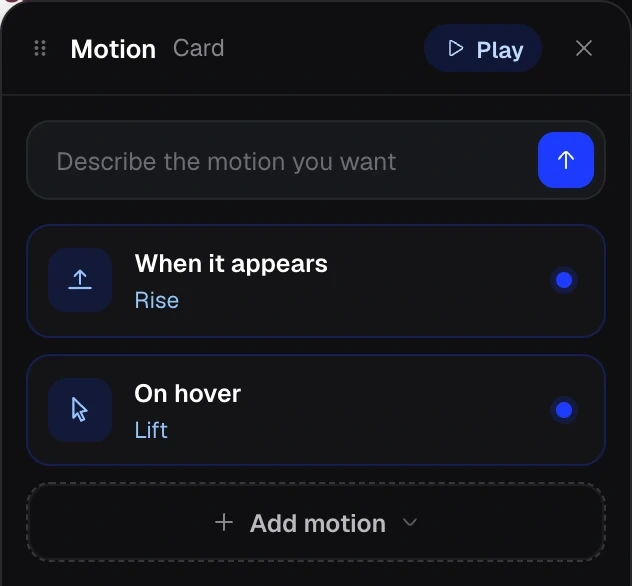
When it plays
- When it appears: as it comes into view. Fade, Rise, Drop, From right, From left, Zoom in, Zoom out, Focus, Reveal up, Curtain, Flip up and Pop.
- While scrolling: it follows the scroll, forward going down and back going up. Parallax, Fade in, Grow in, Turn in, Slide in, Rise in, Fade out, Zoom while scrolling, Fly past, or My own path.
- On hover: when the mouse is on it. Lift, Grow, Shrink, Dim or Glow, or just a colour change.
- On click: while it's pressed. Push or Deep.
- Always: keeps moving gently. Float, Pulse, Spin, Wiggle or Colour.
- Follows the mouse: on computers only. Tilt toward the mouse, Magnetic, or Drift with the mouse.
- Can be dragged: visitors move it with the mouse or a finger.
Titles and short texts can also move Line by line, Word by word or Letter by letter. Pick one under Text, piece by piece in the Effect list.
Fine-tune it
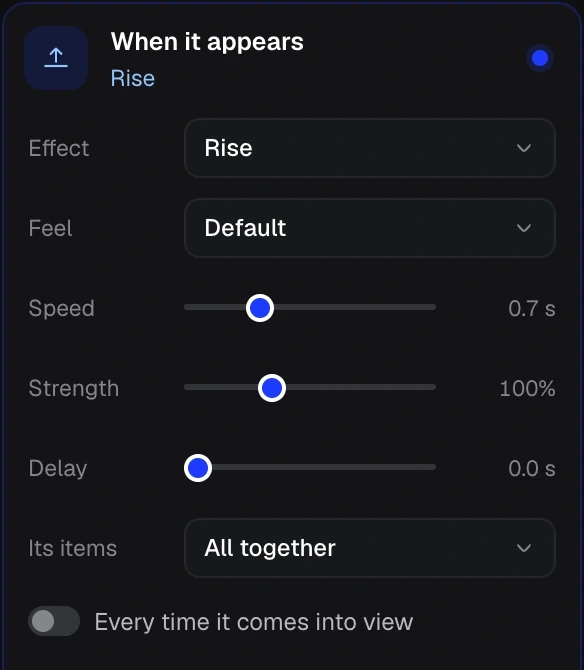
- Feel: Smooth, Snappy, Gentle, Bouncy, Springy or Linear.
- Speed, Strength and Delay: how long it takes, how far it moves, and when it starts.
- Its items: One by one makes the items inside appear one after another, in the order you choose.
- Every time it comes into view: plays again each time, not just once.
- More control: set exactly how it looks before it moves in.
Describe it instead
Type what you want in Describe the motion you want, like "the cards pop in one by one". The AI sets it up with the same settings, so you can still change them.
Scenes for whole sections
Pick a section to see Scene at the top of the panel. The whole section plays as people scroll: Fly through, Side-scroll gallery, Zoom into photo or Card stack. See scenes in Preview.
See it move
The editor keeps things still so you can edit. Click Play at the top of the panel to play it on the page, or open Preview to see the real thing.
Effects from your design
Some effects came with your design. They show From the design. Click Turn off to stop one, or Turn back on to bring it back.
Phones, copying and the whole site
- On phones: Same, Softer (half the movement) or Off.
- Copy: copy an item's motion, then paste it on another item.
- Whole site: set the Motion feel for every effect and a Page change effect between pages.
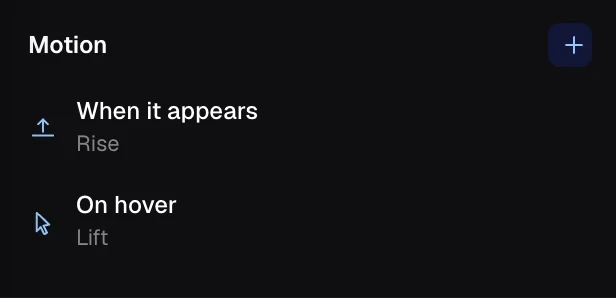
Your motion list stays in the right panel under Motion. Click a row to open it in the panel again.
Calm for everyone
Visitors who ask their device for less motion see none.
Still stuck?
A real person replies by email.