Connect your AI: Claude, ChatGPT, Codex or Cursor
Use Bilvo AI from your plan, or connect the AI plan or API key you already have.
The AI builds your site and makes the changes you ask for. You can use Bilvo AI, which comes with your plan, or connect an AI you already pay for. You only need one.
Everything is in Settings → AI tools.
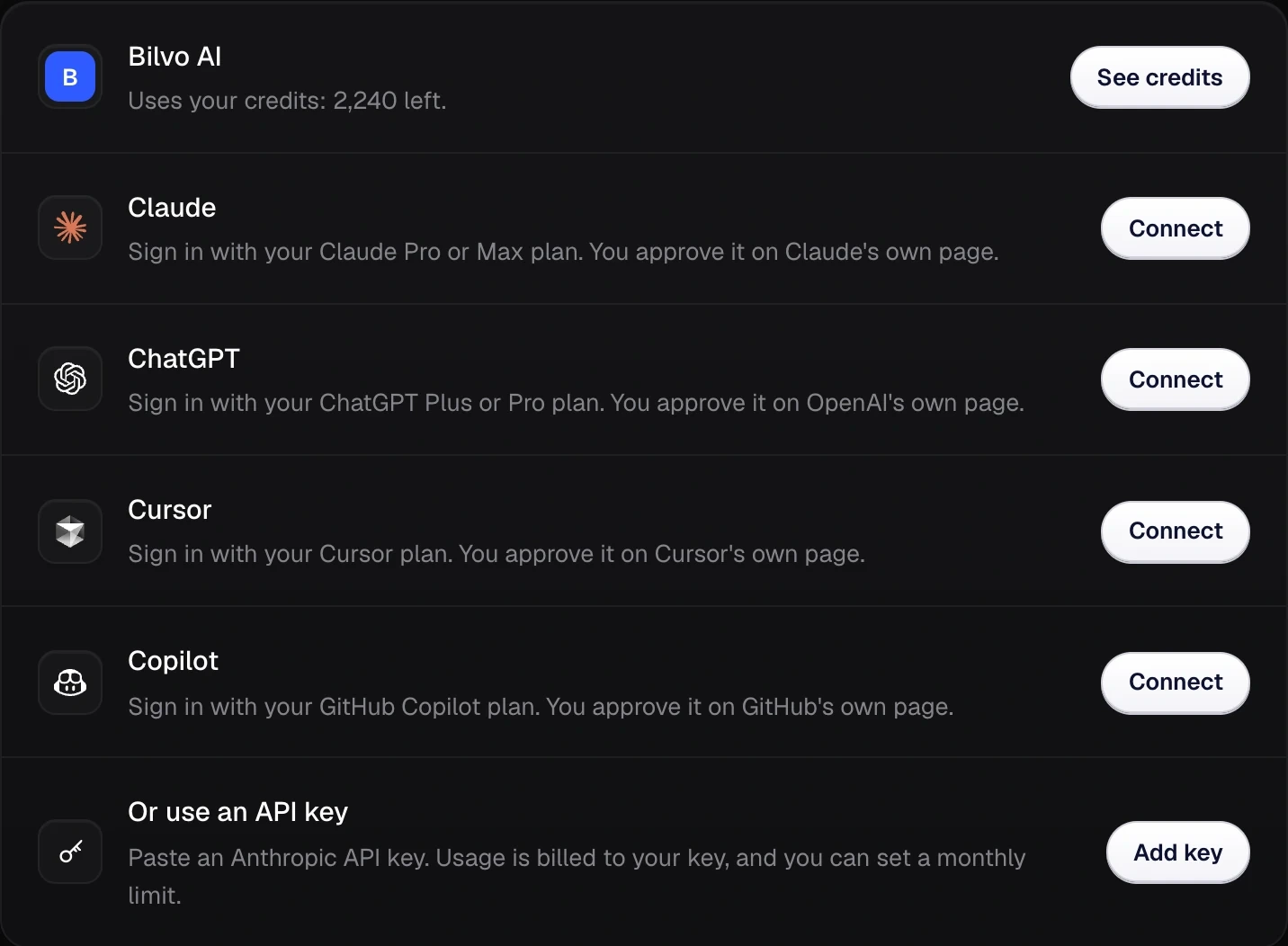
Bilvo AI, the AI plans you can connect, and an API key, in one place.
Bilvo AI (no setup)
Bilvo AI works right away. It uses your plan's AI credits. The Bilvo AI row shows how many are left. Click See credits for details. See Bilvo AI and AI credits.
When you connect your own AI or an API key, the AI uses that instead and no Bilvo credits are used.
Claude (Pro or Max)
Start
Click Connect next to Claude. Claude's page opens in a new tab.
Settings › AI tools › Connect
Approve on Claude's page
Sign in, click Authorize, then Copy Code.
Paste the code
Come back to Bilvo, paste the code and click Connect. Done.
ChatGPT (Plus or Pro)
ChatGPT builds your site with Codex, OpenAI's coding AI. It comes with your ChatGPT plan.
Start
Click Connect next to ChatGPT. Bilvo shows a short code.
Enter the code
Click Copy code & open ChatGPT. Sign in on ChatGPT's page and paste the code.
Done
Come back to Bilvo. It connects by itself.
Code not working?
Click Code not working? Sign in another way. After you sign in, ChatGPT's tab shows an error page. That's normal: copy that tab's address and paste it into Bilvo.
Cursor
Start
Click Connect next to Cursor. Cursor's page opens in a new tab.
Sign in and approve
Sign in on Cursor's page and approve. Come back to Bilvo: it connects by itself.
Use an Anthropic API key
Add the key
Next to Or use an API key, click Add key. Paste your key (it starts with sk-ant-) and click Save key.
Set a limit (optional)
Click Set limit next to Monthly spending limit and enter an amount in US dollars. Your key never spends more than that in a month through Bilvo.
Usage is billed to your key by Anthropic. To stop using it, click Remove key.
Use more than one AI
Open the AI picker under the chat box. The Build with list shows every AI you connected, and a tick marks Building with this. To add one, click Add another AI, then Connect.
Choose a Claude model
- Auto: picks the right model for each step. A good default.
- Opus: big changes and redesigns.
- Sonnet: fast, smart everyday edits.
- Haiku: quick, small text changes.
See how much of your plan you've used
For Claude and ChatGPT, Bilvo shows your plan's 5-hour limit and Weekly limit as "% used", with when each resets. If you hit a limit, everything is saved. Send continue when it resets.
Disconnect
Open Settings → AI tools and click Disconnect next to the AI. You can connect again any time.
Still stuck?
A real person replies by email.