Add and manage pages
Add a new page, change its address, duplicate it or make it your home page.
Click Pages in the left rail to see every page on your site. The top shows how many are ready.
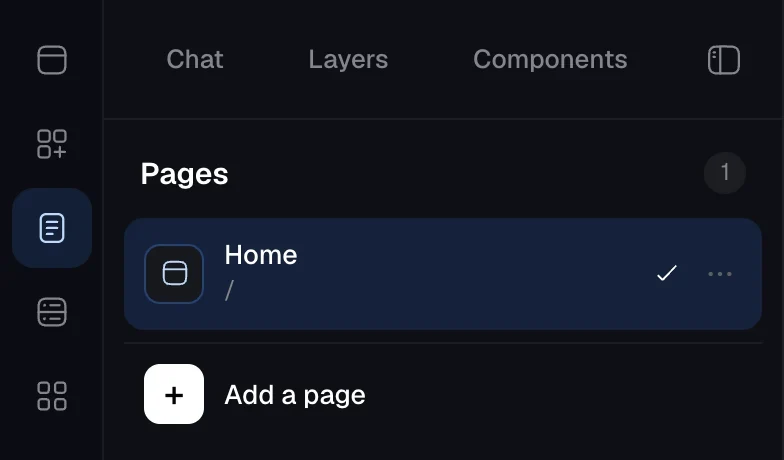
Your pages, with the home page first.
Add a page
Click Add a page
In the Pages panel, click + Add a page.
Pages › + Add a page
Name it
Type a page name, or click a suggestion like About, Services, Pricing, Contact or Blog.
Say what goes on it
Under What should be on it?, write a few words. For example: "Our team, our story and a photo of the shop."
Create it
Leave Add it to the menu on if you want a menu link. Click Create page. The AI designs it to match the rest of your site.
The page menu
Click … next to a page:
Option — What it does
- Page settings — Change the address, Google text and share picture
- Duplicate — Makes a copy of the page
- Set as home page — Makes this the first page visitors see
- Delete page — Removes the page
Page settings
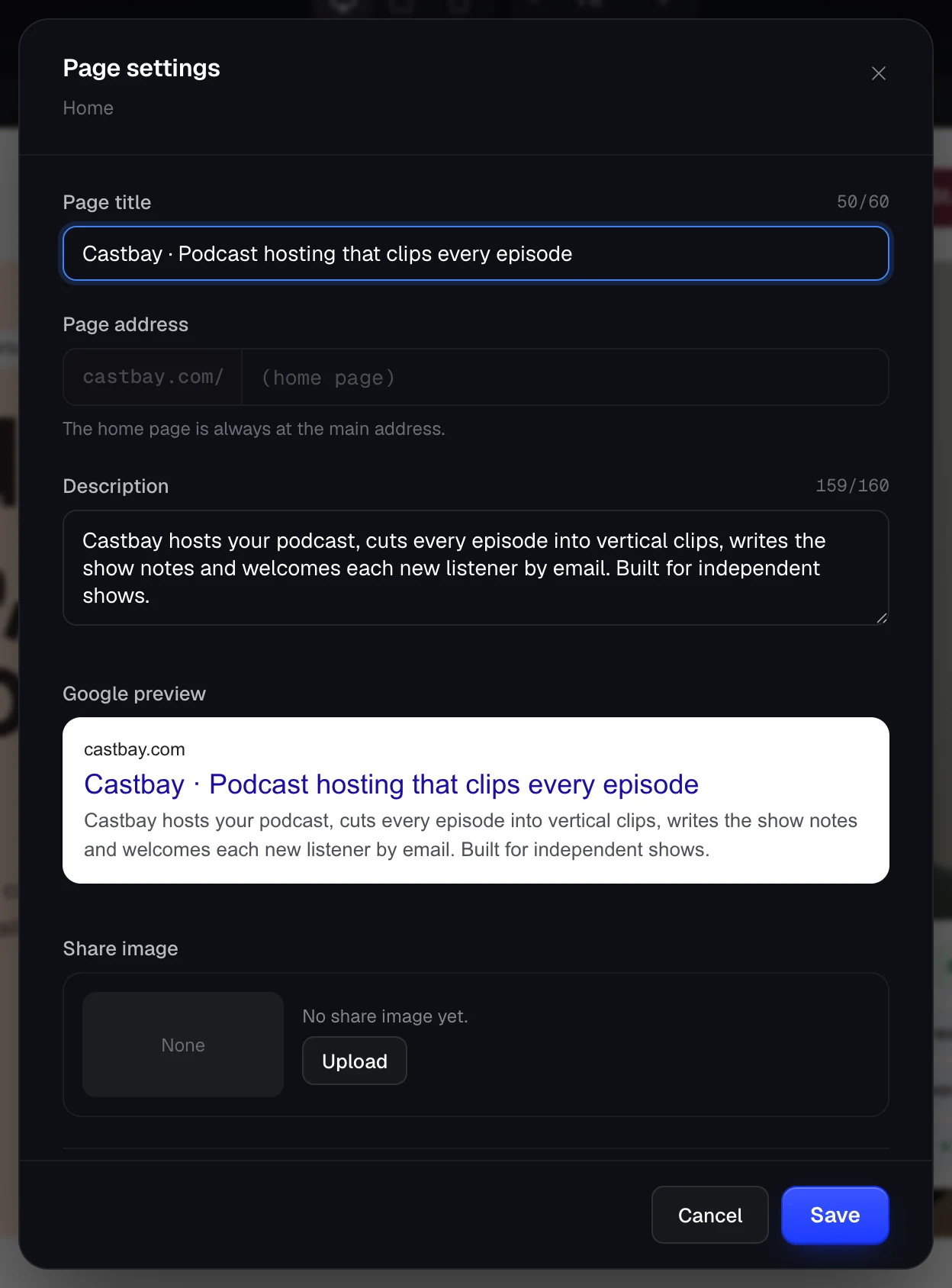
- Page address: Letters, numbers and dashes. Links on your site update by themselves, and the old address forwards to the new one.
- Google preview: The title and description Google shows. Click Write it for me to let the AI write them.
- Share image: The picture shown when someone shares the page. Upload your own, or Use the site's image.
- Show this page in search: Turn off to keep this page out of Google.
Pages not built yet
Some pages may say Not built yet. Click Ask the AI to build them and the AI builds them one by one.
Still stuck?
A real person replies by email.