Publish your site: the 4 ways
Where your Bilvo site can live, and how to pick the right one in under a minute.
When your site is ready, press Publish at the top right of the builder. You choose where it goes. You only need one place, and you can switch later.
Going live on Free
On Free you can put 1 site live on a free bilvo.live address. For your own domain, your own hosting or a download, pick Solo, Pro or Agency. See Plans and limits.
Publish
- Bilvo hosting — yourname.bilvo.live or your own domain
- Your own web hosting — Hostinger, GoDaddy, Bluehost, cPanel…
- Vercel · Netlify · Cloudflare · GitHub — Your own free account
- Download — Every file, to put anywhere
Every way to publish starts from the same Publish button.
Which one should I pick?
If you… — Pick — Guide
- want the quickest start — Bilvo hosting (an address like yourname.bilvo.live, or your own domain) — Bilvo hosting
- already pay for hosting (Hostinger, GoDaddy, Bluehost, Namecheap…) — Your own web hosting — Your own web hosting
- have (or want) a free Vercel, Netlify, Cloudflare or GitHub account — Vercel, Netlify, Cloudflare Pages or GitHub Pages — Publish to Vercel, Netlify…
- want the files to put somewhere else yourself — Download your website (paid plans): every page, photo and file in one .zip — In the Publish panel
Publish for the first time
Open the Publish panel
Click Publish at the top right of the builder.
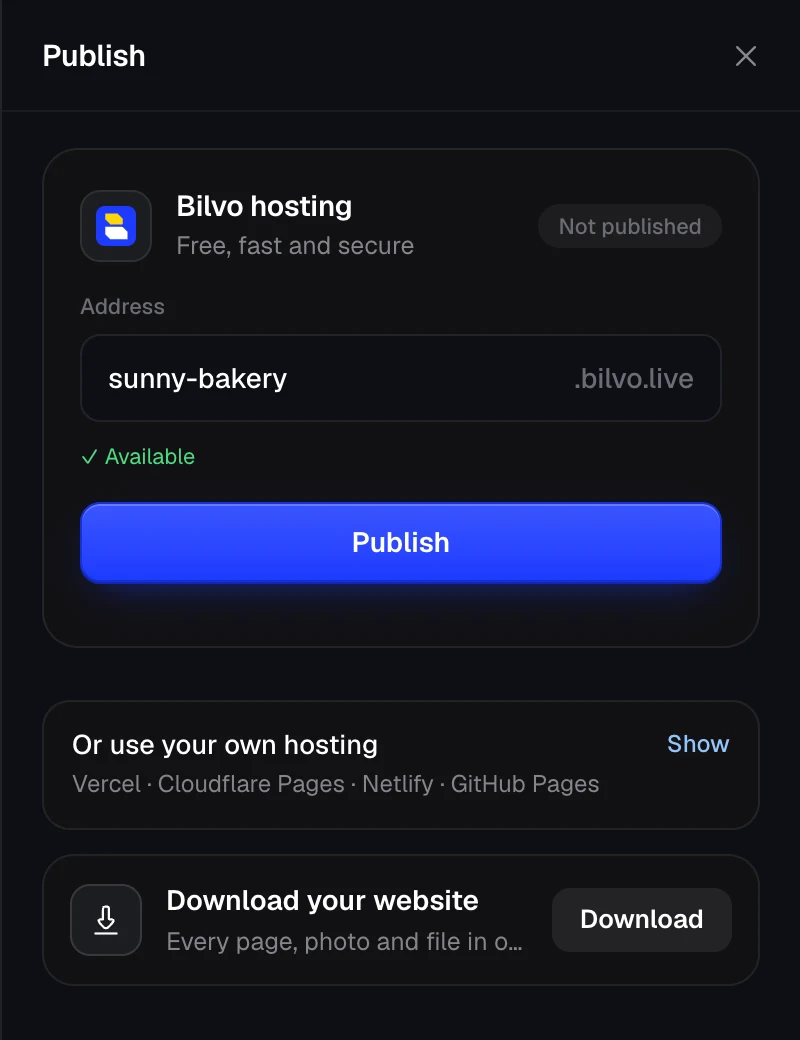
The Publish panel the first time you open it.
Choose where it goes
Bilvo hosting is ready to go. For anything else, open Or use your own hosting and click Connect next to the one you want.
Press Publish
Your site is online in a few seconds. The panel shows its address and a green Live label.
Update your site after changes
Edits are saved as you work, but visitors only see them after you publish again. Open Publish and press Update site. The place you published to last time is remembered.
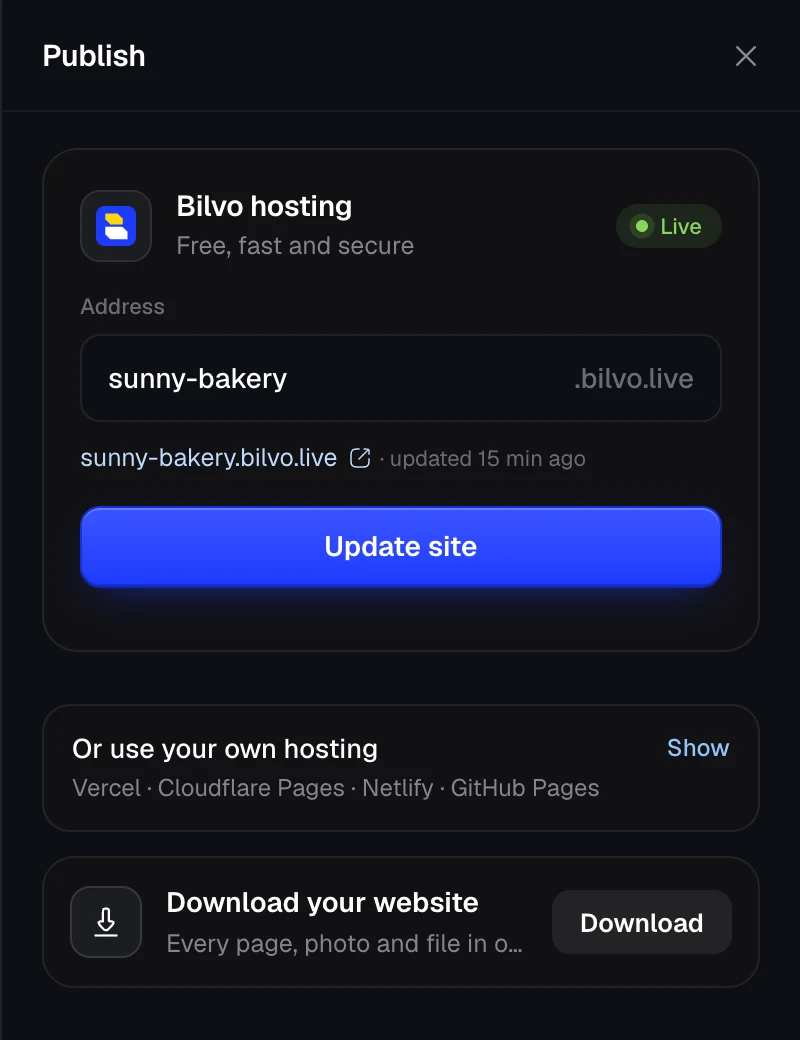
Once your site is live, the button says Update site.
See every option at once
Open Site settings → Hosting to see every place you can publish, which ones are connected, and which one the Publish button uses.
Still stuck?
A real person replies by email.