Add a slider: pictures, cards or reviews that slide
A row of slides with arrows and dots. Visitors swipe on phones. Great for galleries, services and reviews.
5 min read
Add a slider
Open Blocks
In Edit mode, click Blocks in the left rail.
Blocks › Sliders
Pick a slider
Under Sliders, choose Picture slider, Card slider, Review slider or Hero slider (big slides for the top of a page).
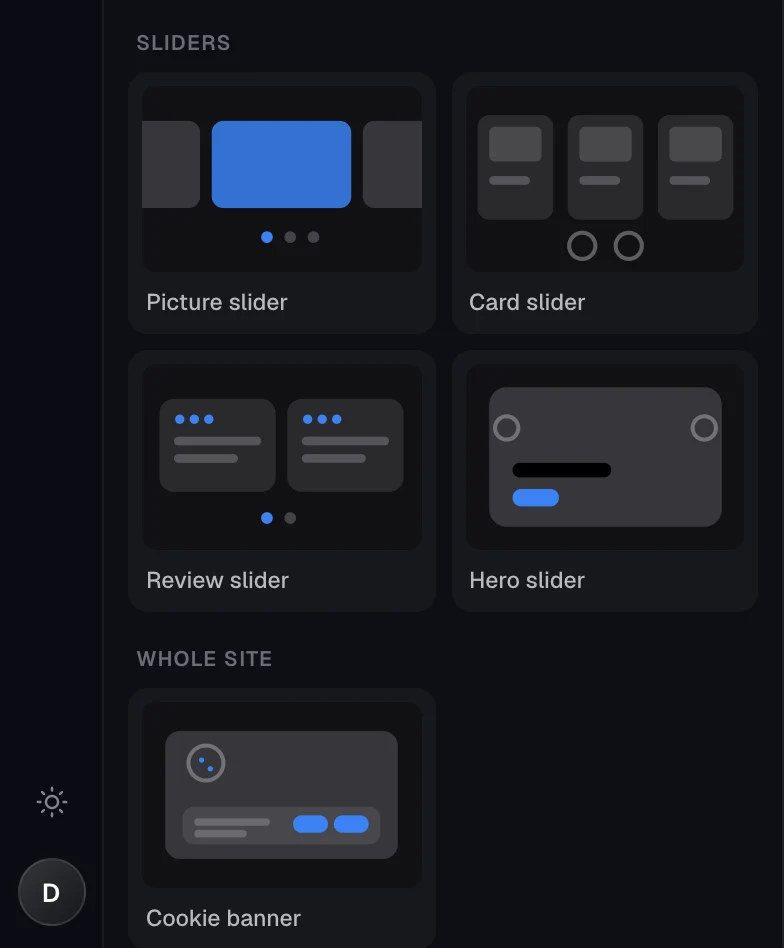
Four kinds of slider.
Put it on the page
Drag it onto your page, or click it and then click where it should go. Its settings open on the right.
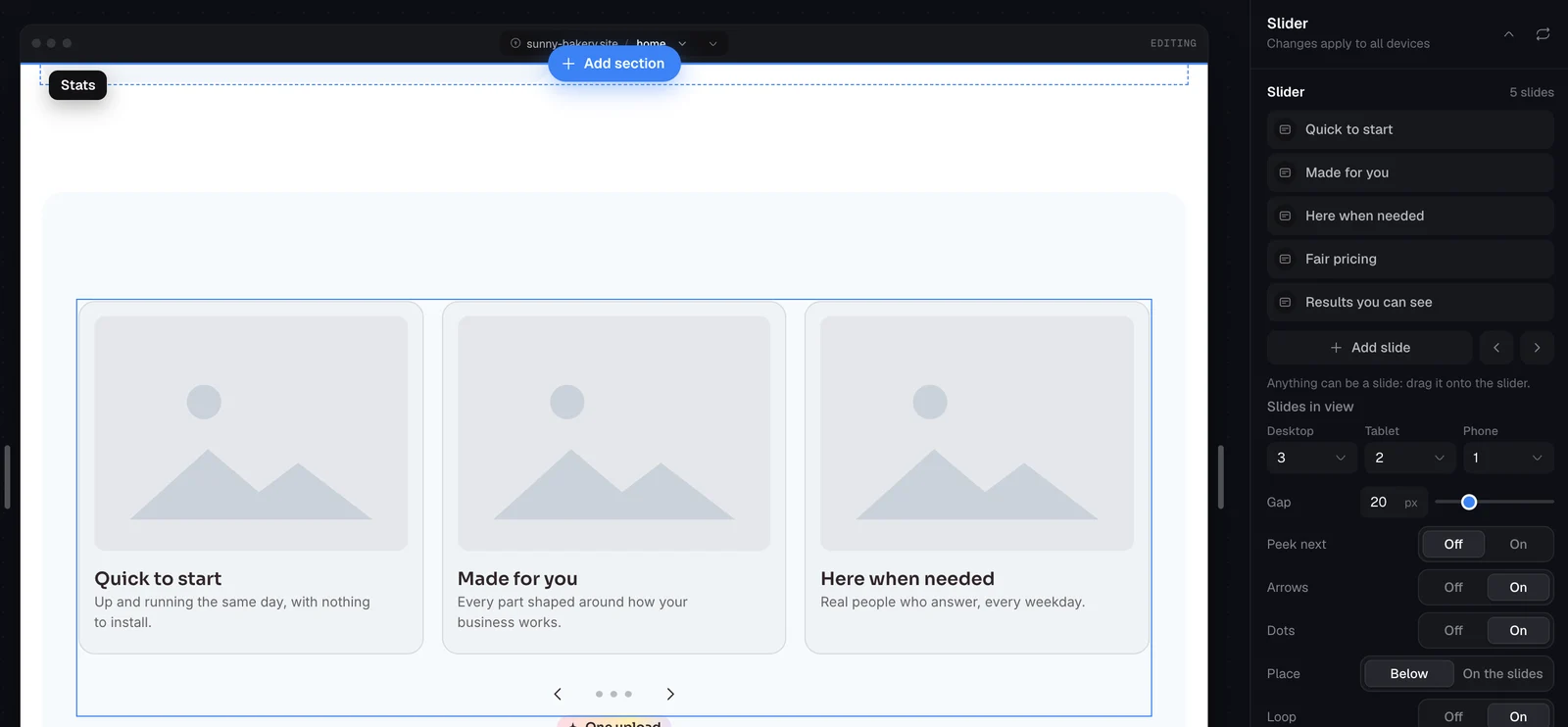
A card slider and its settings.
Change the slides
- Add a slide: click Add slide and pick Like the last one, Picture, Card, Review or Big slide. Anything on the page can also be dragged onto the slider.
- Change a slide: click it in the list (or on the page), then use Replace image or double-click its words.
- Move, duplicate or remove a slide with the buttons next to it in the list.
- See the next slides in the editor with the small arrows next to Add slide.
Change how it looks and moves
Setting — What it does
- Slides in view — How many slides show at once, set separately for Desktop, Tablet and Phone
- Gap — The space between slides
- Peek next — Shows a sliver of the next slide, so visitors know there's more
- Arrows and Dots — Turn each on or off
- Place — Arrows and dots Below the slides, or On the slides
- Loop — After the last slide, start again from the first
- Autoplay and Every — Moves to the next slide by itself, every few seconds
- Picture shape — Landscape 4:3 or 3:2, Wide 16:9, Square or Portrait 3:4
- Slide height — How tall the slides are
See it slide
The editor keeps the slider still so you can edit each slide. Open Preview to try the arrows, dots and swiping. On your live site, visitors can also use the arrow keys.
Still stuck?
A real person replies by email.