Where form messages go: email and webhooks
Messages go to your account email. Send them to another address, or to Zapier, Make, n8n or your own app.
Every form on your site uses the same Send to setting. You find it at the bottom of the Form card when you click any form.
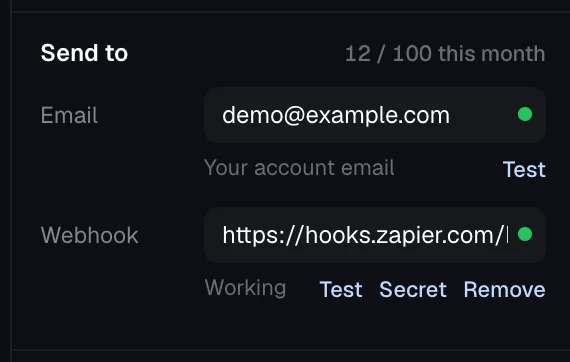
Send to: one setting for every form on the site.
The email you get
What it says
- From — Your site name via Bilvo
- Subject — New message from the visitor's name, then your site name
- Inside — Every answer, with its field name, and the page it was sent from
- Reply — Press Reply in your email app. Your answer goes straight to the visitor.
Send messages to another email
Type the new address
In Send to → Email, type it and click Send confirmation link.
Form › Send to › Email › Send confirmation link
Confirm it
Open the email Bilvo sent to that address and press the confirm button. The builder notices by itself. You can also click I've confirmed.
Until then
Messages keep going to your current address, so nothing is lost. Resend sends the link again. Skip for now keeps things as they are.
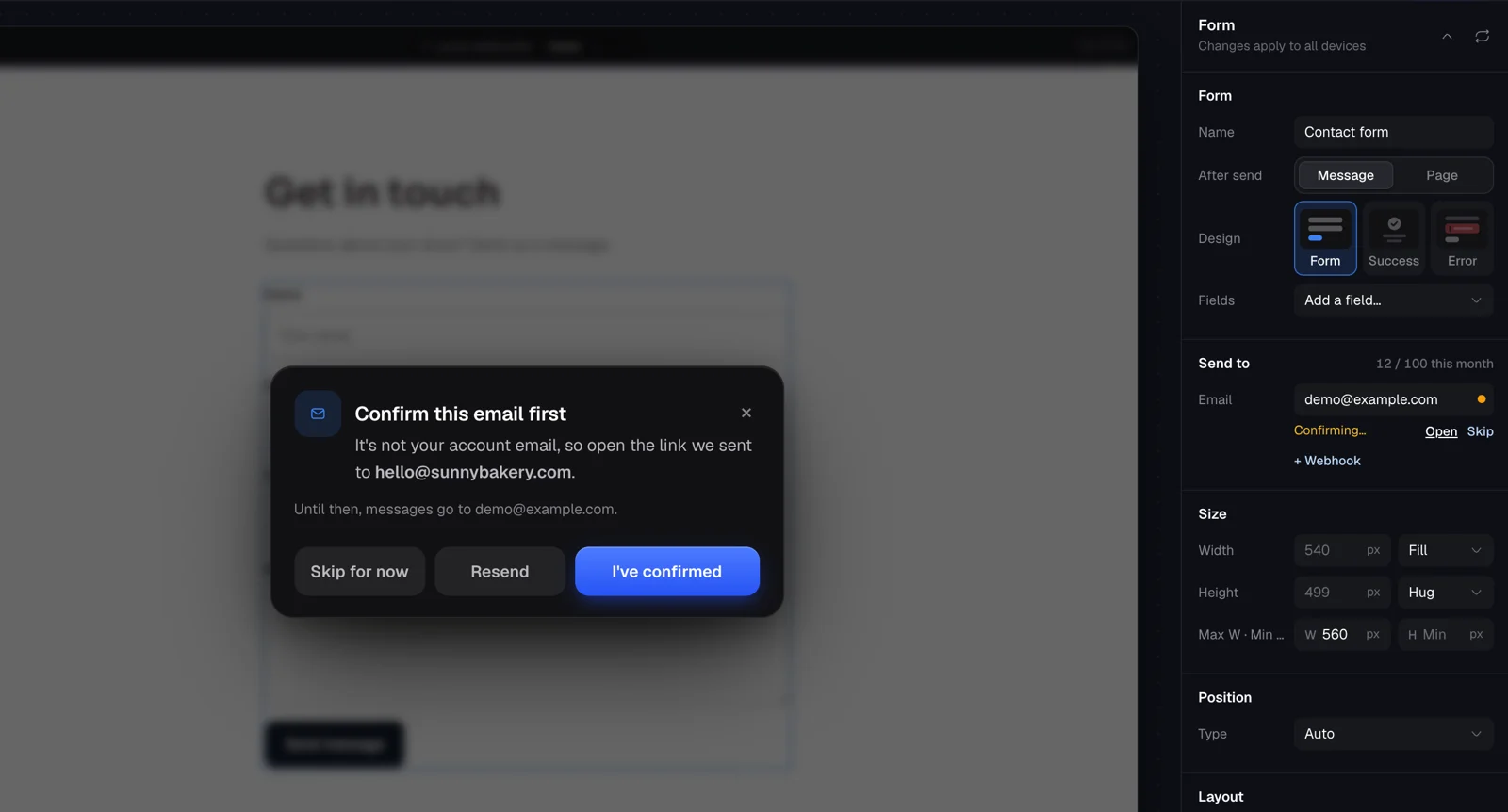
A new address must be confirmed from its own inbox.
Click Test next to the email to send yourself a test message. To go back to your login email, click Use account email.
Send messages to Zapier, Make or your app (webhook)
A webhook passes each message to another tool, for example to add it to a spreadsheet or your CRM. You can use it with email or on its own.
Get the address from your tool
In Zapier, Make, n8n or your own app, create a webhook trigger ("catch hook") and copy its address. It must start with https://.
Add it in Bilvo
In Send to, click + Webhook, paste the address and click Save webhook.
Form › Send to › + Webhook › Save webhook
Test it
Click Test. Bilvo sends a sample message, and the status shows Working or Failed.
Webhook detail — What to know
- What it sends — JSON with event (form.submission, or form.test for tests), site, form, page, submitted_at, data (each answer by field name) and fields
- Proof it's from Bilvo — Each request has an X-Bilvo-Signature header. Click Secret to copy the signing secret your app can check it with.
- If it fails — Bilvo tries once more a minute later, then keeps the message. The status shows Failed.
- Stop it — Click Remove. Your email keeps getting messages.
Only the site owner
Only the person who owns the site can change where messages go.
Still stuck?
A real person replies by email.