Components with fields you can change
Let each copy of a component show its own words, picture or link, and add looks with variants.
A component is a part you reuse, like a review card. This guide shows how to let each copy show its own words, picture or link while the design stays shared. New to components? Start with Components and layers.
Main and copies
Every component has one main and any number of copies. Click one and the top of the right panel says Main or Copy.
- Change the main and every copy follows.
- Change a copy and only that copy changes. The main and the other copies stay as they were.
Add properties
Properties are the parts each copy can change. You set them up once, on the main.
Pick the main
Click the main copy. Its card is at the bottom of the right panel.
Click + Add property
Pick what each copy can change: a Text, a Picture, a Link, a colour, or Show / hide for a part. The list names each part, so you know which one you're picking.
Name it
Give it a clear name, like Quote or Photo, and click Add property.
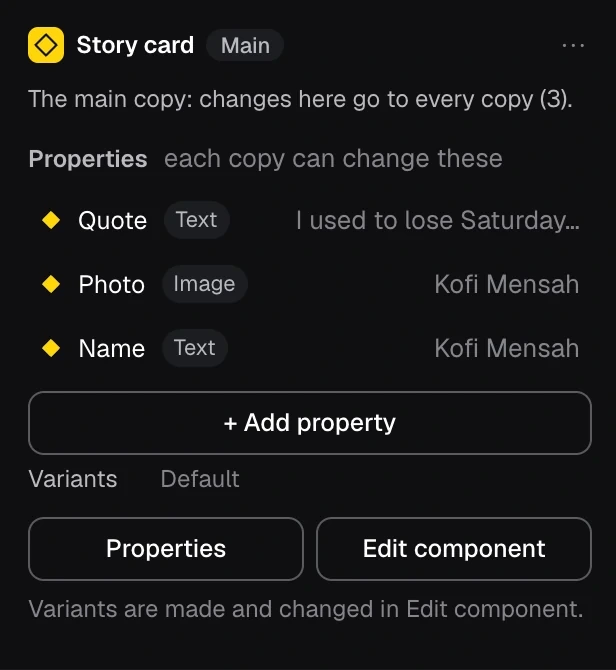
Quicker way: click a part of the main, then click the diamond next to a setting, like the Text box, a colour, padding or Visible. That setting becomes a property.
Change a copy
Click a copy. Its properties show at the top of the right panel. Type new words, click Change to pick another picture, or paste a new link.
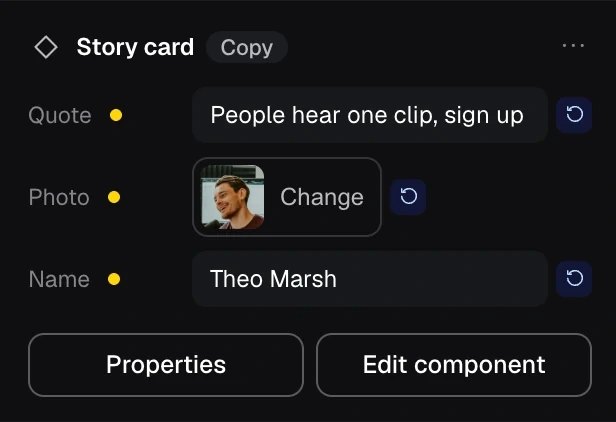
A dot means this copy has its own value. Click the round arrow next to it to go back to the main's value.
Rename, reorder or set defaults
Click Properties to open the full list. Rename a property, move it up, or remove it. The Default value is what every copy shows until that copy changes it. Removing a property doesn't change any copy: each keeps what it shows now.
Variants
A variant is another look for the same component, like Dark or Compact. Each copy picks one.
Open Edit component
Click Edit component. The main and every variant show side by side.
Click + Add variant
Give it a name, then change its colours, sizes and spacing. Words, pictures and layers stay shared by every variant.
Pick it on a copy
Click Back to page, click a copy, and choose the variant from Variant at the top of the panel.
Edit the main from any copy
Click Edit component on any copy to change the main, even when it's on another page. Every copy follows, and each keeps its own property values.
The ⋯ menu on a copy has more: Go to main copy, Reset all changes, Push changes to main, Make this the main copy, Detach (make it normal layers) and Duplicate as new component.
Still stuck?
A real person replies by email.