Edit your site from Claude, ChatGPT or Cursor
Connect your own AI app to Bilvo, then ask it to build and change your sites from its own chat.
You can work on your Bilvo sites straight from the AI app you already use, like Claude, ChatGPT, Cursor or Codex. You chat there, and the changes appear in Bilvo.
This works through a connection called MCP. It's a standard way for AI apps to use other tools. You don't need to know how it works: you copy one address into your AI app, and that's it.
What you need
- A Bilvo account (any plan)
- An AI app that can add connectors, like Claude, ChatGPT or Cursor
- About 2 minutes
Get your Bilvo address
Open AI apps
Click Settings in the left menu, then AI apps (MCP). Stay on the Connect tab.
Settings › AI apps (MCP) › Connect
Choose how much it can reach
Under Your whole account, the address lets your AI app work on all your websites and make new ones. Under Just one website, each site has its own address. Your AI app can then only work on that one site.
Copy the address
Click Copy next to the address you want.
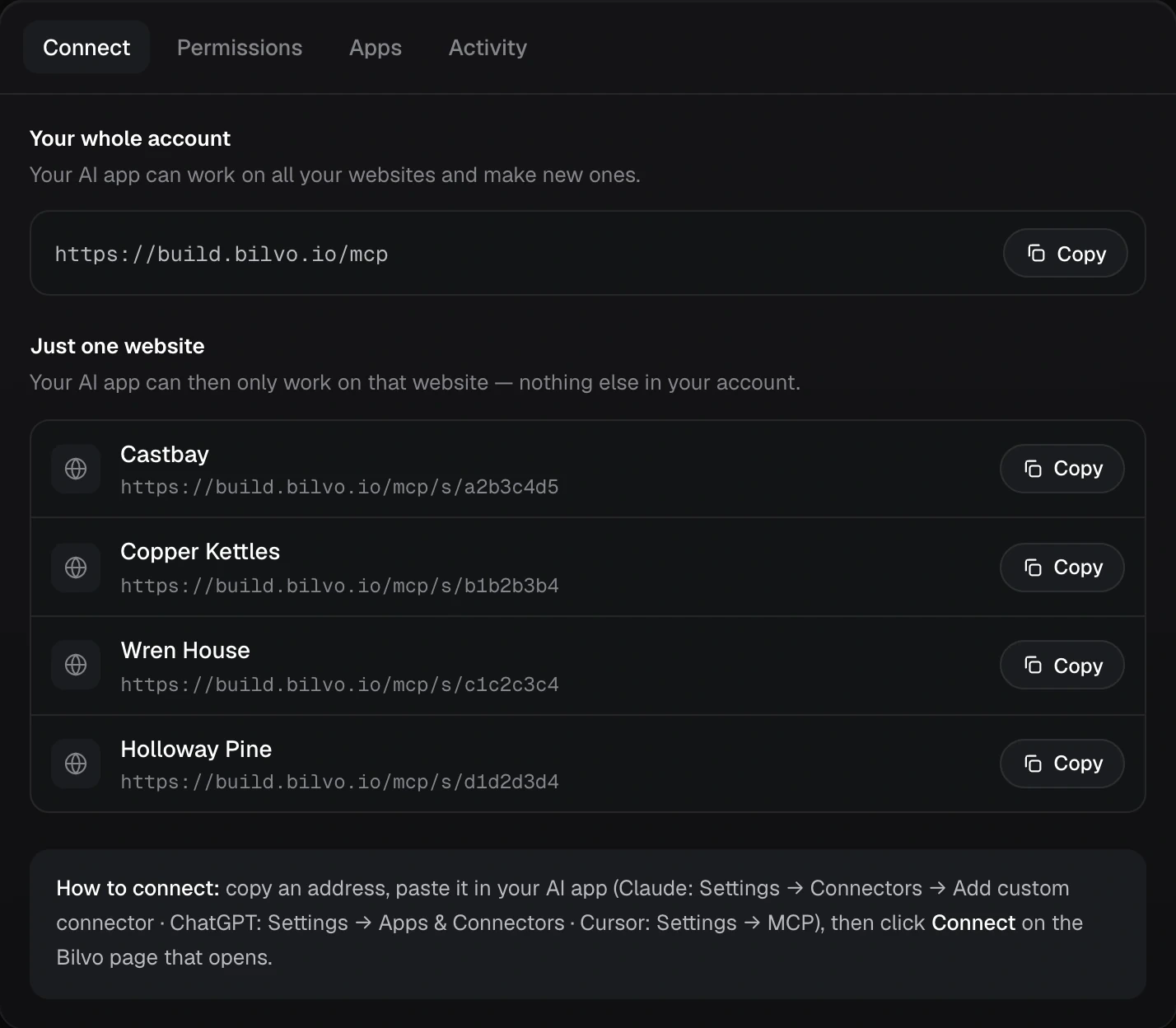
One address for your whole account, or one per website.
Working on one site?
You can also find that site's address in the site's own Site settings, under AI apps (MCP).
Add it to your AI app
The menus in these apps can change. If you can't find them, search the app's help for "custom connector" or "MCP".
- Claude: Settings → Connectors → Add custom connector. Paste the address.
- ChatGPT: Settings → Apps & Connectors. Add a new connector and paste the address.
- Cursor: Settings → MCP. Add a new server and paste the address.
A Bilvo page opens in your browser. Make sure you're signed in to Bilvo, then click Connect. To let it reach only some sites, open Only some websites and tick them first.
App has no Connect button?
Some setups, like some Cursor, Codex or Claude Code setups, need a key instead. Open the Apps tab, click New key, give it a name and pick how long it lasts. Copy the key right away. It's shown only once, so keep it private, like a password.
What you can ask
Chat with your AI app as usual and mention your Bilvo site. For example:
- "In my Bilvo site Castbay, change the hero headline to: Record once, clip forever."
- "Add an FAQ page with 6 questions about our pricing."
- "Add three blog posts to the CMS."
- "Check the SEO of every page and fix what's missing."
- "Make a new website for my bakery."
Your AI app can do almost everything you can do in the builder: pages, text, photos, styles, sections, the CMS, forms, menus, SEO, languages and more. The changes show up in the builder.
Choose what it may do
Open the Permissions tab. Each kind of change has three choices:
- On: allowed
- Ask me: your AI app asks you each time
- Off: never
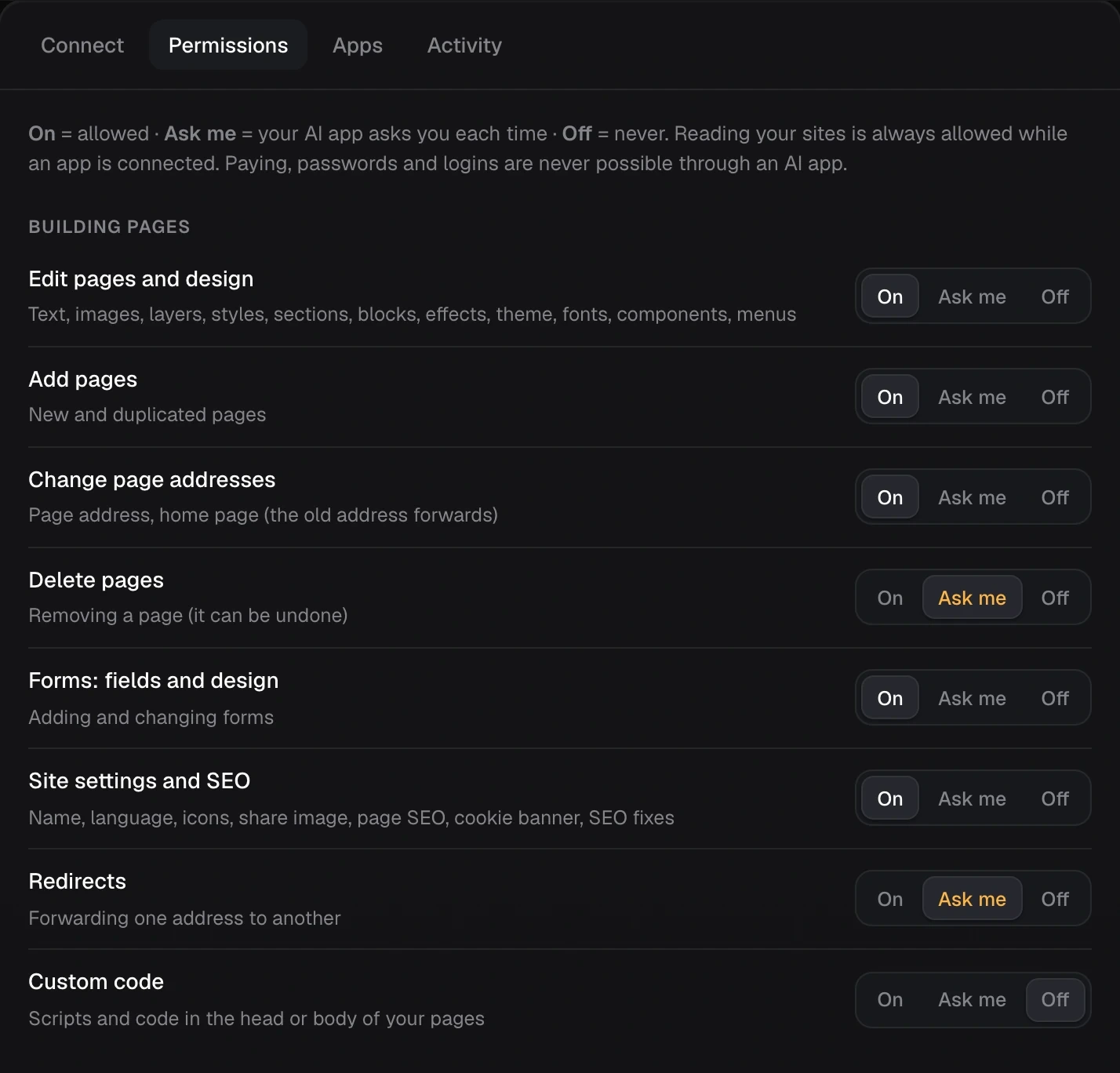
Pick On, Ask me or Off for each kind of change.
Risky things start on Ask me or Off, like publishing, deleting pages, custom code, domains and sharing. Reading your sites is always allowed while an app is connected. Paying, passwords and logins are never possible through an AI app.
Approving a change
When something is set to Ask me, your AI app asks you first, right in its own chat. Say yes or no there.
If your app can't ask, it gives you a Bilvo link instead. Open it and click Approve or Decline. You'll also see the request at the top of Settings → AI apps (MCP) under Waiting for your OK.
Does it use Bilvo credits?
No. Your AI app does the thinking on its own plan, so it never uses your Bilvo AI credits. Things like new websites and uploads still count toward your Bilvo plan, the same as in the builder.
See what it did
The Activity tab lists every change your AI apps made. Changes can be undone like any other change.
Disconnect
Open Apps
In Settings → AI apps (MCP), open the Apps tab.
Disconnect
Click Disconnect next to the app. It stops at once. With more than one app, Disconnect all stops them all.
Still stuck?
A real person replies by email.