Invite people to edit with you
Invite people by email to view or edit a site, and work on it together at the same time.
Invite a teammate, client or freelancer to your site. They can watch it as it's made, or edit it with you, live.
Invite someone

The Share button sits next to Publish.
Open Share
In the editor, click Share at the top right. You can also click Share in a site's menu on your dashboard.
Type their email
Type their email address in Invite by email.
Pick a role
Choose Can edit or Can view, then click Invite.
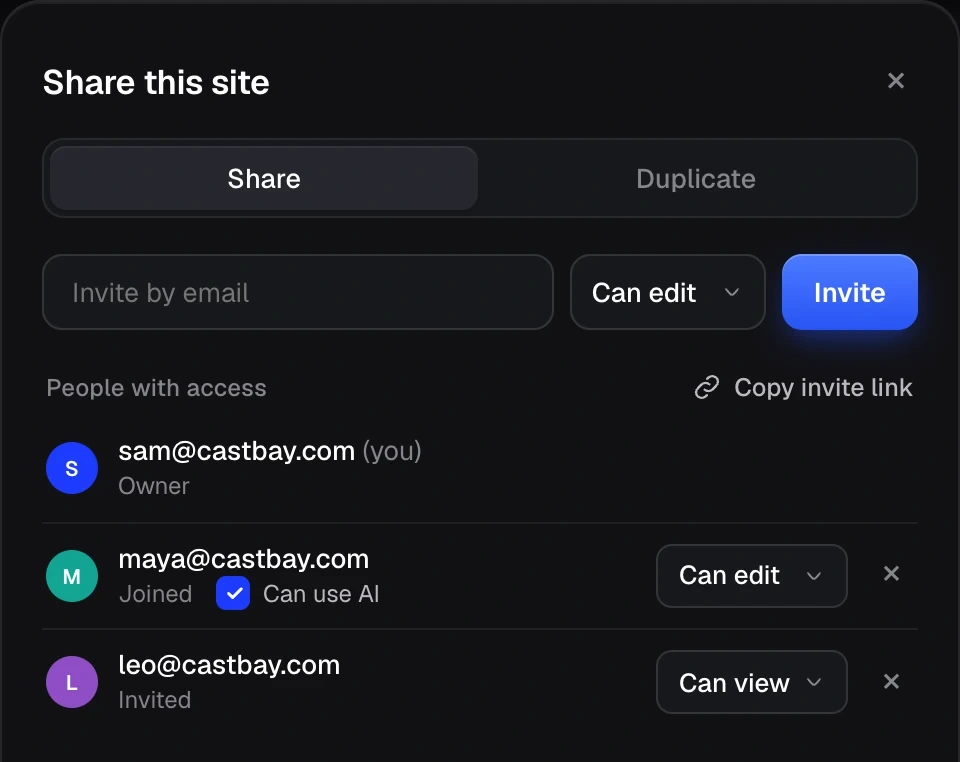
Everyone with access, and their role.
Bilvo emails them a link. They sign in with that same email address. A free Bilvo account is fine. The site then shows under Shared with you on their dashboard.
Email didn't arrive?
Click Copy invite link and send it to them yourself.
Viewer or Editor
- Can view: they see the site in the builder as it changes, but can't change anything.
- Can edit: they can change text, photos, styles, pages, the CMS and menus, just like you.
People you invite never see your account, your other sites, your settings, domains, hosting or billing. They only reach this one site.
Let an editor use the AI
Editors have a Can use AI tick box. When it's on, they can ask the AI for changes on this site. It uses your AI plan or your Bilvo AI credits, so untick it if you'd rather they edit by hand only.
Editing together, live
- You see each other's changes as they happen, no reload needed.
- Faces at the top show who's on the site right now. A green dot means they're here.
- If two people change the same thing at the same moment, the latest version shows. The other one is kept in History.
- Undo only undoes your own changes, never someone else's.
How many people
Paid plans have unlimited editors and viewers per site. On the Free plan, it's you + 3 editors per site.
Change a role or remove someone
Open Share. Next to the person, switch between Can edit and Can view. To remove them, click the × next to their name. They lose access right away.
Someone you invited can also leave a shared site from their own dashboard.
Only need feedback?
A view link is quicker. See Share a view link and get comments.
Still stuck?
A real person replies by email.