Reusable colours, text styles and sizes
Name your colours, text styles and sizes once, use them everywhere and change them in one place.
Styles are looks you name once and use everywhere: colours, text styles and sizes. Change a style and everything that uses it changes too.
Click Styles in the left rail to see them all. Changes save by themselves.
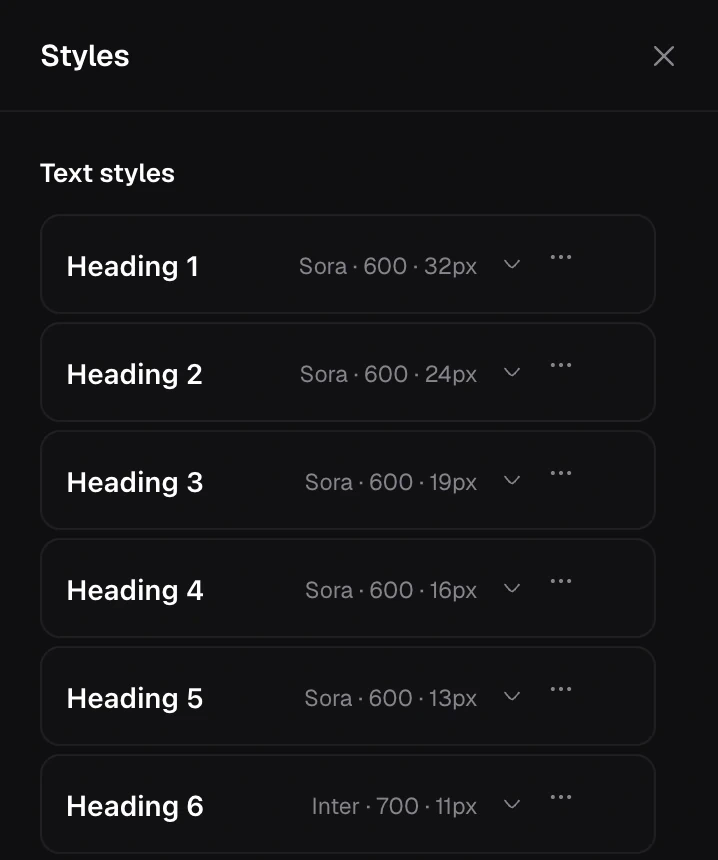
Text styles
Your site has a text style for each kind of text: Heading 1 to Heading 6, Paragraph, Buttons, Links and Small text. Each row shows its font, weight and size.
Change a style
Click its row to open it. Set the Font, Weight, Size, Spacing, Transform, Line, Align and Balance. Use the screen buttons at the top to set a different size for tablets or phones.
Make your own
Click Add text style and give it a name.
Use it on a text
Click a text on the page. In the right panel, pick the style from Text style. Or pick + New style from this text to save that text's look as a new style.
Colours
Under Colors, each colour has a job, like the button colour or the text colour. Your own colours are under Your colors. Click Add color to make a new one.
To use a colour, click any colour box in the right panel. Your colours are at the top, under Theme colors. Found a colour you like? Click + New style there to save it with a name.
Sizes
A size is a number with a name, like Page width 1100px. Use it in many places, then change it once to change them all.
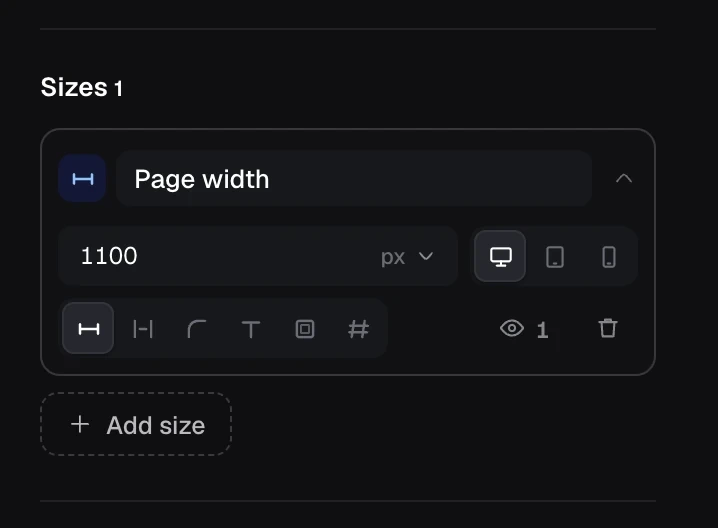
Add a size
Click Add size. Give it a name and a number. You can set a different number for tablets and phones.
Choose what it's for
Pick widths, spacing, corners, text, borders, or any number field. It then shows in the right fields only.
Use it
Click an item on the page. In the right panel, click the diamond in a field like Width, Gap, Padding, Margin or Radius, and pick the size. The field now shows the size's name.
The eye button on a size shows how many places use it. Click it to light them up on the page.
Find, rename, duplicate or delete
Right-click any style in the Styles panel, or click its ⋯.
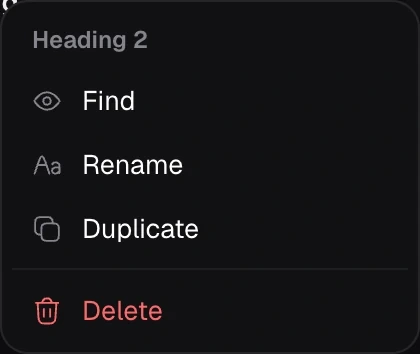
- Find: lights up every place on this page that uses it.
- Rename: give it a clearer name. Nothing on the page changes.
- Duplicate: make a copy to change from there.
- Delete: removes the style. Anything that used it keeps its look.
Deleting a size that's in use asks you first. Click Remove to keep the numbers as they are, or Swap to… to move those places to another size.
Unlink one item
Want one item to stop following a style, but keep its look? Click the item, then:
- Text style: click the unlink button next to the style's name.
- Size: click the size's name in the field and choose Unlink. The number stays.
- Colour: pick a different colour, or type a colour code.
From then on, changes to the style don't reach that item.
Still stuck?
A real person replies by email.